
A remote display environment using "Amazon DCV" is available on OCTOPUS front-end.
When you finish using the service, please be sure to delete the session using this command. If a session remains active, others will not be able to use the service.
Getting Clients
You can get the "Amazon DCV Client" from hereand install it on your PC, which comes in Windows, Linux, and macOS versions.
Creating virtual sessions for Amazon DCV servers
Log in to the front-end and create a virtual session for the "Amazon DCV server". Execute the following command. Enter any string for the session name. There are two front-end servers. You need to connect to the server of the front-end where you created the virtual session. The server name and session name will be needed when connecting, so please keep the information handy.
| $ dcv create-session --type=virtual [session-name] #create a virtual session $ dcv list-sessions #check the created virtual session |
Launch Amazon DCV client
Start the Amazon DCV client on your PC. When it starts, you will see a window like the one below, connecting to the virtual session you created with OCTOPUS front-end. For example, if the server where you created the virtual session is "octopus2" and the session name is "test", enter "octopus2.hpc.osaka-u.ac.jp:5901/#test" and click "Connect".
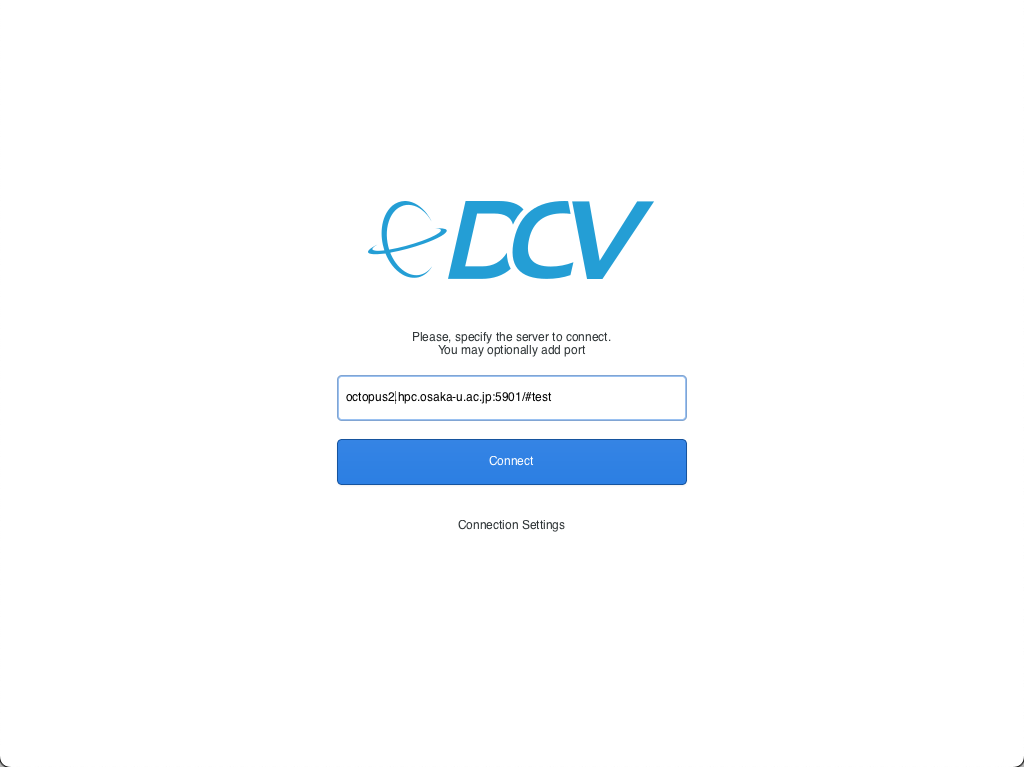
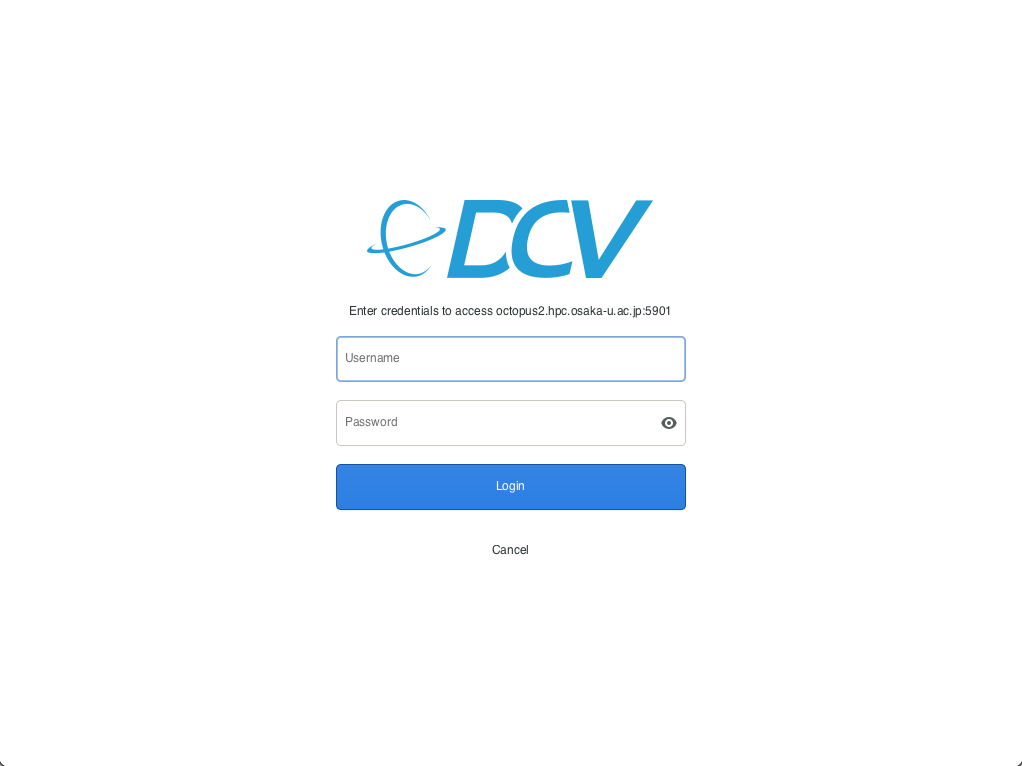
If the connection to the "Amazon DCV server" on the OCTOPUS front-end is successful, the following screen appears. Enter your user name and password, and click "Login".
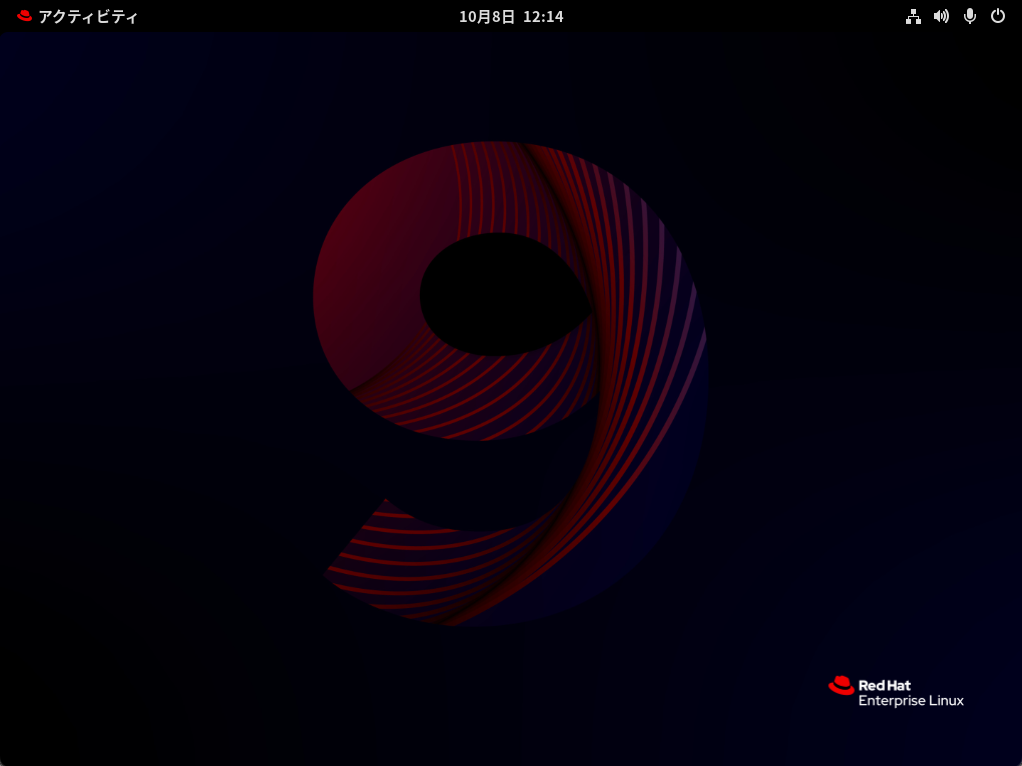
If the Amazon DCV login is successful, the desktop login screen of the front-end will appear as shown below. If the authentication is successful, the desktop screen of the front-end will appear as shown below.
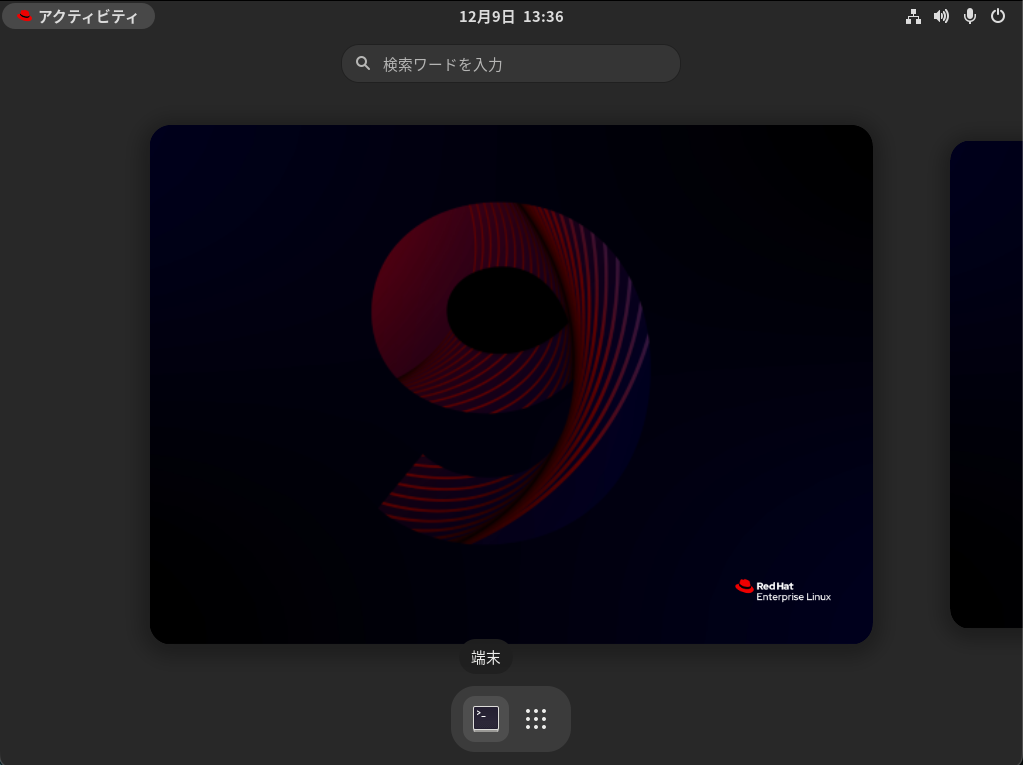
To launch the Terminal, click the "Activities" (アクティビティ) icon in the top-left corner of the desktop screen, then click the "Terminal" (端末) icon.
Deleting a virtual session on a Amazon DCV server
When you are done using Amazon DCV, log in to the front-end and delete the virtual session of the Amazon DCV server.
When you finish using the service, please be sure to delete the session. If a session remains active, others will not be able to use the service. Sessions that have been running for more than a week may be deleted without prior notice. If you plan to use the service for an extended period, please contact us in advance via the contact form.
| $ dcv close-session [session name]
# delete your virtual session |
Please note that you will need to connect to the server where you created the virtual session and delete it.
