
SQUID Portal and OCTOPUS Portal allow you to check system usage status, including the number of jobs you have submitted and executed during the current fiscal year and your node-hour usage. You can also submit the annual “Usage Report / Research Achievement Report” through the portal. OCTOPUS Portal SQUID Portal
How to Log In
- Preparation
- First Login
- Second and Subsequent Logins
Portal Functions
If You Are Unable to Log In
How to Log In
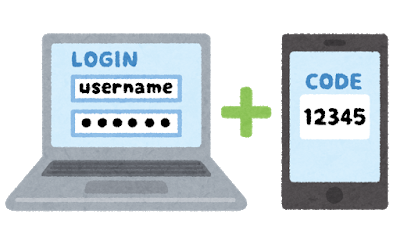
Logging in to the portal site requires multi-factor authentication. In addition to password authentication, authentication using an application is required.
Password
Preparation
Password
This is the same password used to log in to SQUID or OCTOPUS. Please confirm the password you set when your account was issued. If you have forgotten your password, please reset it using the system below.
Web Usage Application System
Multi-Factor Authentication App
When logging in to the portal, you must complete multi-factor authentication using Google Authenticator or a similar application. Please prepare and install the required multi-factor authentication application on your device or smartphone.
The following multi-factor authentication applications have been confirmed to work:
OS
Application
Distributor
Android
Google Authenticator
Google Play Store
Microsoft Authenticator
Google Play Store
iOS
Google Authenticator
Apple App Store
Microsoft Authenticator
Apple App Store
Windows
WinAuth
Github
macOS
Step Two
Apple App Store
Web Usage Application System
When logging in to the portal, you must complete multi-factor authentication using Google Authenticator or a similar application. Please prepare and install the required multi-factor authentication application on your device or smartphone.
The following multi-factor authentication applications have been confirmed to work:
The following multi-factor authentication applications have been confirmed to work:
| OS | Application | Distributor |
|---|---|---|
| Android | Google Authenticator | Google Play Store |
| Microsoft Authenticator | Google Play Store | |
| iOS | Google Authenticator | Apple App Store |
| Microsoft Authenticator | Apple App Store | |
| Windows | WinAuth | Github |
| macOS | Step Two | Apple App Store |
First Login
When you access the OCTOPUS Portal or SQUID Portal, the following screen will be displayed.
(The SQUID Portal is used as an example, but equivalent functions are provided in the OCTOPUS Portal.)
These settings can only be configured during your first login. If reconfiguration is required, please contact us here.
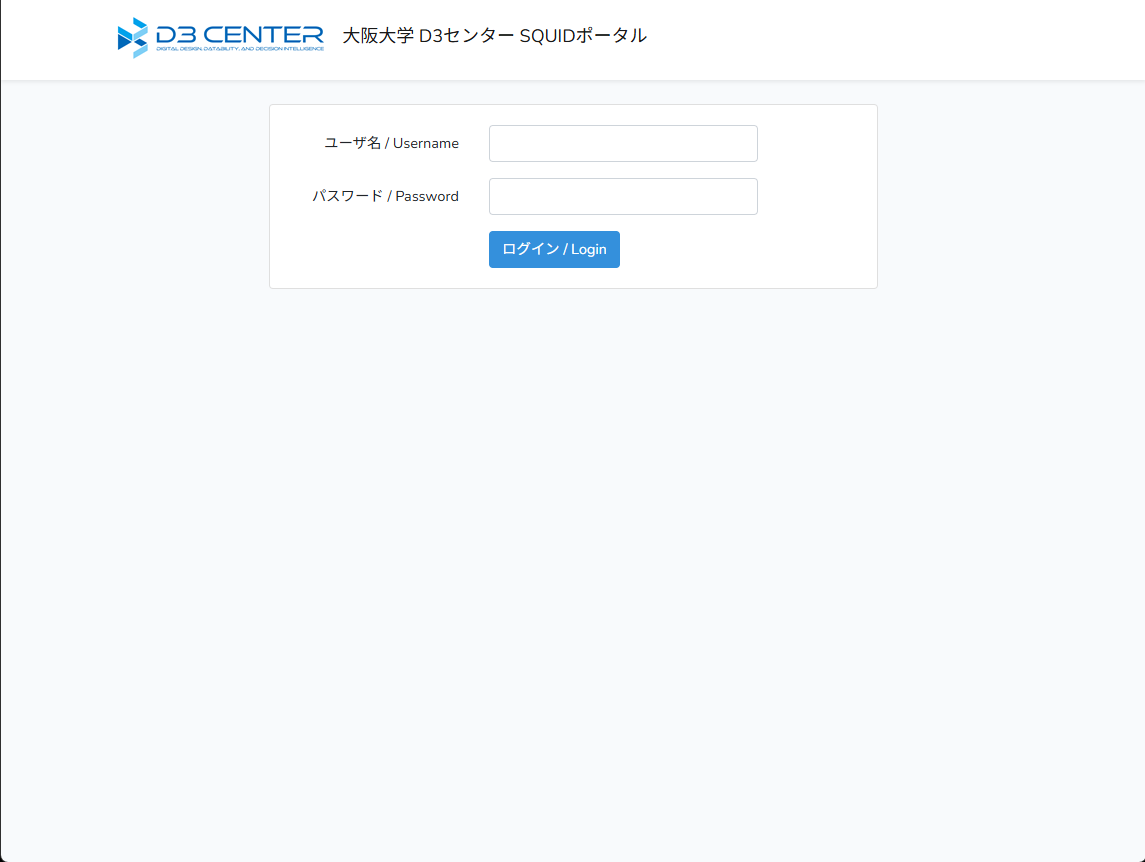
In the Username field, enter your “User ID Number,” and in the Password field, enter the password used to log in to SQUID or OCTOPUS, then click the Login button.
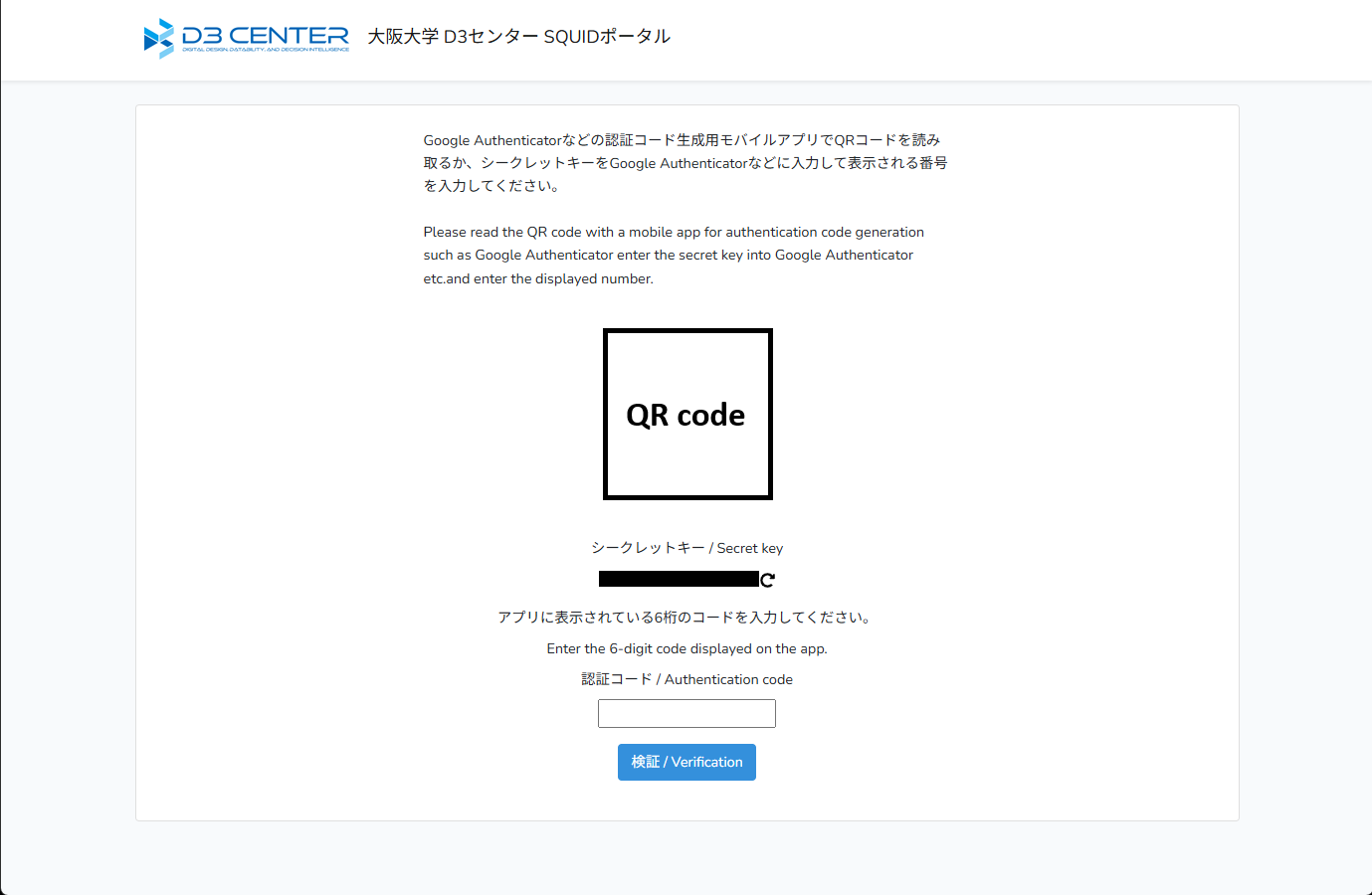
Scan the QR code displayed on the multi-factor authentication application. If you are unable to scan the QR code, please manually enter the secret key into the multi-factor authentication application.
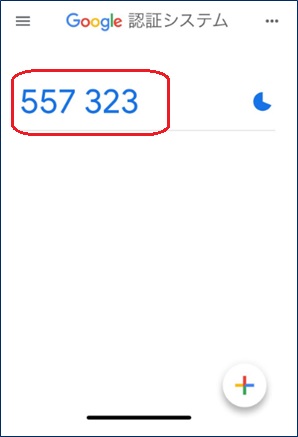
Enter the “Authentication Code (6-digit number)” displayed in the multi-factor authentication application into the authentication code field, and click the “Verify” button. Once the process is complete, a completion screen will be displayed.
Click the OK button to proceed to the portal home screen.
(The SQUID Portal is used as an example, but equivalent functions are provided in the OCTOPUS Portal.)
These settings can only be configured during your first login. If reconfiguration is required, please contact us here.
In the Username field, enter your “User ID Number,” and in the Password field, enter the password used to log in to SQUID or OCTOPUS, then click the Login button.
Scan the QR code displayed on the multi-factor authentication application. If you are unable to scan the QR code, please manually enter the secret key into the multi-factor authentication application.
Enter the “Authentication Code (6-digit number)” displayed in the multi-factor authentication application into the authentication code field, and click the “Verify” button. Once the process is complete, a completion screen will be displayed.
Click the OK button to proceed to the portal home screen.
Second and Subsequent Logins
As with the first login, when you access the OCTOPUS Portal or SQUID Portal, the following screen will be displayed.
(The SQUID Portal is used as an example, but equivalent functions are provided in the OCTOPUS Portal.)
In the Username field, enter your User ID Number, and in the Password field, enter the password used to log in to SQUID or OCTOPUS, then click the Login button.
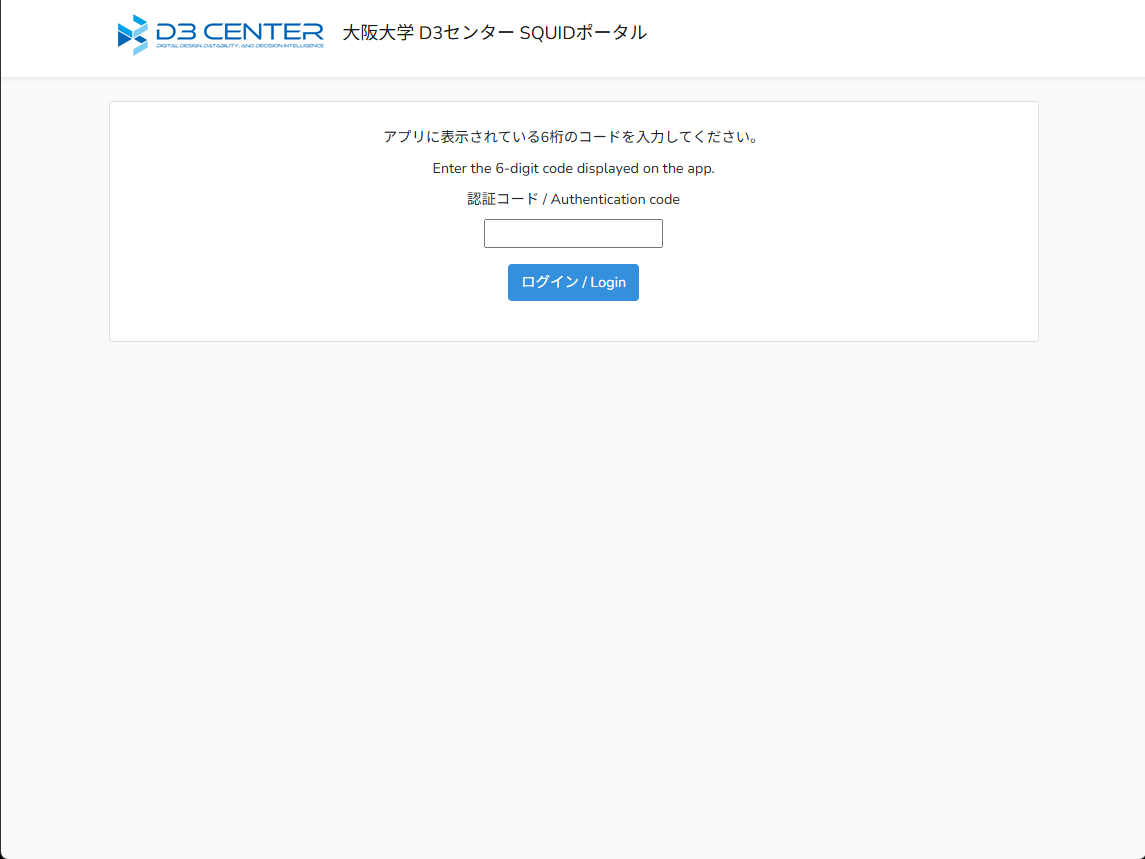
You will be redirected to this screen. Enter the multi-factor authentication code and click the “Login” button.
(The SQUID Portal is used as an example, but equivalent functions are provided in the OCTOPUS Portal.)
In the Username field, enter your User ID Number, and in the Password field, enter the password used to log in to SQUID or OCTOPUS, then click the Login button.
You will be redirected to this screen. Enter the multi-factor authentication code and click the “Login” button.
Portal Functions
After logging in to the portal, the following screen will be displayed.
(The SQUID Portal is used as an example, but equivalent functions are provided in the OCTOPUS Portal.)
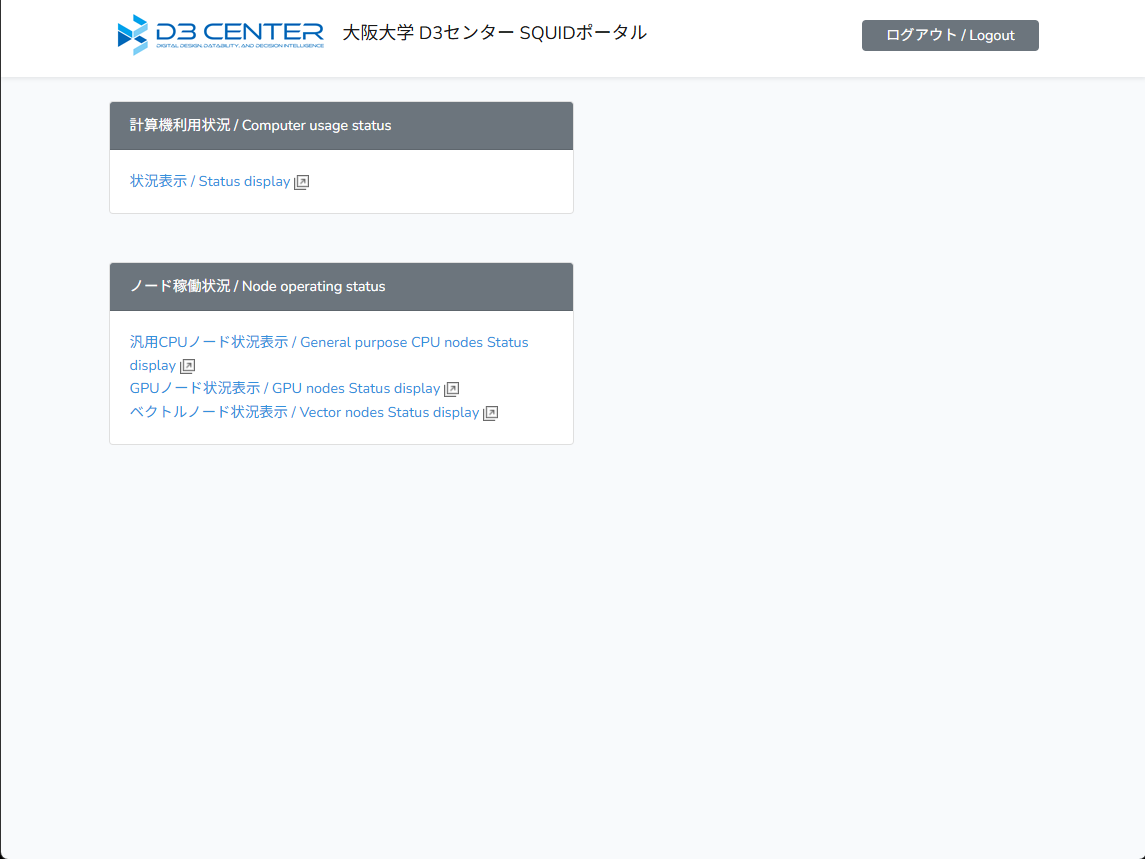
(The SQUID Portal is used as an example, but equivalent functions are provided in the OCTOPUS Portal.)
| Computer Usage Status | You can check your performance statistics for the current fiscal year, including the number of submitted and executed jobs and node hours used. If you are the principal applicant, you can also check the usage status of users belonging to your group. |
|---|---|
| Node Operation Status | You can visually check all jobs submitted to the computing system. |
| Announcements | Announcements for users are posted here. Links to submit the Usage Report / Research Achievement Report are also provided here. |
For details on Computer Usage Status and Node Operation Status, please refer to the manuals below.
SQUID User Manual (Excerpt: Portal Section)
OCTOPUS User Manual (Excerpt: Portal Section)
If You Are Unable to Log In
If you are unable to log in, please contact us here.
Depending on the situation, we will reset your password or multi-factor authentication settings.
Depending on the situation, we will reset your password or multi-factor authentication settings.
