
Introduction
-
OCTOPUS provides Data Provenance System for HPC (DPS4H), which enables the collection and viewing of provenance information.
- General users (group members)
- Group administrators
- System administrators
- CLI users
This manual outlines the procedures for searching, visualizing, viewing, and editing provenance information collected by DPS4H using a browser or CLI.
This manual is primarily intended for the following users:
System Requirements and Prerequisites
- OS: Windows 11, macOS
- Browser: Microsoft Edge (Win), Google Chrome (Win), Safari (Mac), Firefox
- System Administrator: Can perform operations on all provenance
- Group Administrator: Can perform operations on managed groups and their own provenance
- Group Member: Can perform operations on their own provenance
Web Browser Operating Environment (Recommended)
Accounts and Roles
-
The content displayed on screens and available functions vary based on the user's permissions (role).
This system has the following roles:
Session Management
-
The session times out after 30 minutes of inactivity. Upon resuming operations, you will be automatically redirected to an error screen and will need to log in again.
Usage
-
When you submit a job specifying the job class "DPS" for provenance collection on the front-end server, the Tracer on the compute node will begin collecting information and executing the job. For details on job classes, please refer to this page.
The Aggregator constructs provenance information once per hour. Since this construction process cannot be started concurrently, if the previous batch processing is incomplete, it will be skipped and executed during the next startup.
Users can search provenance information via browser or CLI. The same search conditions can be specified in both the browser and CLI. Graph display, destination settings, and permanent link operations are performed via the browser.
Authentication and Login
- Access the login URL (https://scup.hpc.osaka-u.ac.jp/).
- Enter your ID or email address, password, and one-time passcode. Your ID and password are the same as those for OCTOPUS.
Login
-
This section explains the steps to log in via your browser.
* For your first login, you must set up two-factor authentication. A QR code will be displayed during your first login. Please set this up using a two-factor authentication app like Google Authenticator.
Logout
-
You can log out by selecting "Logout" (ログアウト) from the user name menu in the top right corner of the screen.
When Accessing via Permanent Link
-
Users can share provenance information with external parties by issuing a permanent link for jobs they have executed. Anyone accessing the permanent link issued by the user can view the provenance information without authentication or authorization. When accessing via a permanent link, functions such as setting the publication destination, issuing links, or searching are disabled.
Searching and Viewing Provenance Information
- Remove ".oct" from the Job ID
- Convert the job start date to YYYYMMDD format
- Enter in the format "{Job ID}:{Job start date}"
- Original Job ID: 49812.oct
- Job Start Date: 2025/11/30
- Search Input Value: 49812:20251130
- Do not use slashes or hyphens in dates
- Do not include spaces before or after the colon
- Date/Time Specification: Searches can be performed down to the minute. Internally, data is managed with nanosecond precision. For example, specifying an end time of "23:59" includes data up to "23:59:59.999999999".
- Visible data varies by role. Group members can view their own non-public data, but cannot see non-public data from other companies.
- Enter your search conditions (検索条件). Click "Open Advanced Conditions" (詳細条件を開く) to input detailed conditions.
- Click "Clear" (クリア) to reset the search conditions.
- Click "Search" (検索) to proceed to the search results screen.
- Sorting: Click a table header in the search result to sort ascending or descending order. This sorting persists as a composite sort.
- Paging: Navigate between pages in the search result. You can also change the number of rows displayed per page (choose from 20, 50, or 100).
- Job Selection: Click a row in the search result table to view detailed provenance information related to that job.
- Zoom In/Zoom Out
- Fit to Screen
- Export Screen: Download the graph as a PNG image.
- Refresh: Resets the positions of moved vertices and edges.
- Sorting: Click a table header in the list view to sort ascending or descending order. This sorting persists as a composite sort.
- Paging: Navigate between pages in the list view. You can also change the number of rows displayed per page (choose from 20, 50, or 100).
- View Details: Click a row to view detailed information.
Search Fields
-
The main search fields are as follows.
| Search Field | Input Format | Matching Condition | Notes/Details |
|---|---|---|---|
| Job ID | Numbers or colons | Exact match |
The format differs from the NQSV JOBID displayed on OCTOPUS. Please convert it using the following procedure. [Conversion Procedure] [Example] [Important Notes] |
| ファイル名(file name) | - | Partial match | - |
| 追加情報(additem) | Either item name or value | Partial match | Additem refers to additional information entered by users. |
| ジョブスクリプト名(script) | - | Partial match | Name of job script |
| 実行ユーザ(uid) | Numbers | Partial match | Uid of executing user |
| 実行日時, 時刻 (Execution time range) |
Start date/time and end date/time |
- | - |
| 公開設定 (Visibility settings filter) |
非公開 (private), 公開指定あり (shared) or 全体公開 (public) |
- | - |
Important Notes
How to Search Provenance
-
Follow these steps to search:
Search results (検索結果) include Job information, Process information, File information, and visibility settings.
| Type | Description | Main Attributes |
|---|---|---|
| Job | Job-level information. Public range and permanent links are managed per job. | id, job_id, batch_script |
| Process | OS process-level information. Maintains parent-child relationships and MPI type. | id, pid, uid, euid, egid, path, host, args, parent, start, mpi |
| File | File-level information. Appears in input/output relationships. | id, uid, path, inode, host |
| Visibility | private / shared / public | visibility |
The following operations are available on search results.
Provenance Information Display (来歴情報表示)
-
Clicking a row in the search results table allows you to view the provenance information associated with that job.
[Provenance Information]
-
A collection of information recording the Job, Process, File, and their relationships associated with the execution of a compute job.
Job, Process, and File are collectively called entities. The relationships between entities are called relations.
[Entity]
-
The fundamental elements constituting provenance information. Consists of three types: Job, Process, and File.
| Type | Description | Main Attributes |
|---|---|---|
| Job | Job-level information. Public range and permanent links are managed per job. | id, job_id, batch_script |
| Process | OS process-level information. Maintains parent-child relationships and MPI type. | id, pid, uid, euid, egid, path, host, args, parent, start, mpi |
| File | File-level information. Appears in input/output relationships. | id, uid, path, inode, host |
[Relations]
-
These represent relationships between entities.
| Type | Source → Destination | Description |
|---|---|---|
| parent | Process → Process | Indicates a relationship from parent to child process. In the graph, an arrow points from parent to child. |
| input | File → Process | Indicates a process used the file as input. |
| output | Process → File | Indicates a process outputted (created/updated) the file. |
Provenance information can be displayed in two ways: "Graph View" (グラフ表示) and "List View" (一覧表示).
Graph View (グラフ表示)
-
You can view a graph representing the entities as vertices and the relations as edges when the job was executed.
You can drag and move the vertices and edges of the graph. Clicking a graph vertex displays its details.
Additionally, clicking the icon in the upper-right corner enables the following operations:
List View (一覧表示)
-
Click "List View" (一覧表示) on the graph display screen to view a list of provenance information related to the job.
The list view consists of two tabs: "Entity" (エンティティ) tab and "Relation" (リレーション) tab.
Each displays a list of the job's entities and relations, respectively.
The following operations are available for the list view:
Editing Additional Information
-
You can add, update, or delete additional information (詳細情報).
- Additional Item Name: Required field. Cannot duplicate other additional item names.
- Additional Item Value: Required field.
[Additional Information Input Rules]
Visibility Settings
-
Click "Visibility Settings" (公開先設定) in the upper-right corner of the provenance display (来歴情報表示) screen to configure the visibility for the job's provenance information.
- Private (非公開)
- Shared (公開指定あり): You can make it visible only to specified GIDs and UIDs.
- Public (公開)
You can select and set the Visibility from the following options:
Using Permanent Links
How to Create and Use Permanent Links
-
Click "Create Link" (リンク発行) in the upper-right corner of the provenance display (来歴情報表示) screen to create a permanent link. Accessing the URL displayed after creating the permanent link allows you to view provenance information without logging in. Use this when sharing with external parties. When viewing via a permanent link, you cannot adjust visibility settings, create new links, or perform searches. To delete a permanent link, click "Delete Link" (リンク削除).
Important Notes
-
Please delete permanent links when they are no longer needed. Also, for long-term use, please review them periodically.
CLI Usage (Terminal/API Integration)
-
You can search, update, and delete provenance using the CLI tool in the OCTOPUS front-end.
Authentication
-
Authentication is required before use.
Execute the following command in the OCTOPUS front-end to begin authentication:
dps-cli.sh login
After executing the command, a message like the following will appear.
Access the displayed URL in your browser or scan the QR code to open the authentication page.
[INFO] デバイスフロー認証を開始します...
1. ブラウザで以下のURLにアクセス: https://auth-red.onion.osaka-u.ac.jp/realms/OCTOPUS/device?user_code=XXXX-XXXX
(下記QRコードをスマホ等で読み取れます)
############## ######## ###### #### ## #### ##############
## ## ########## ## ## ## ## ## ##
## ###### ## ## ## #### ###### ######## ## ###### ##
## ###### ## #### #### ###### #### ## ## ###### ##
## ###### ## ######## ## ## ## #### ## ## ###### ##
## ## ## ## #### #### ## ######## ## ## ##
############## ## ## ## ## ## ## ## ## ## ## ## ##############
#### ## ## #### ## ##########
#### #### ## ## ########## ## ## ## ## ##
If prompted to log in, do so as you would when viewing your browser provenance.
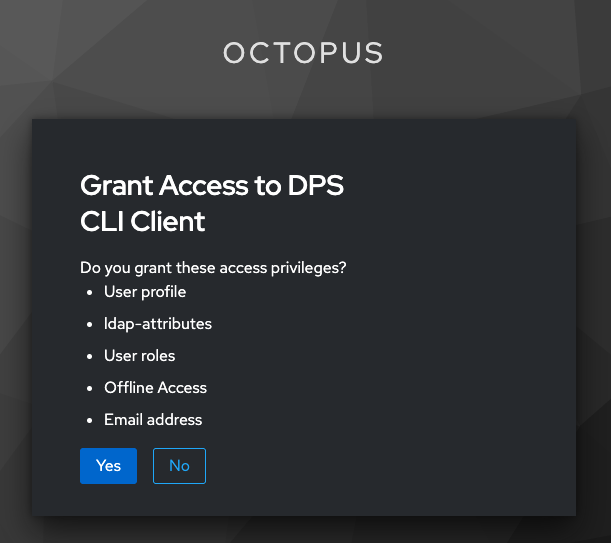
Selecting "Yes" on the "Grant Access to DPS CLI Client" page completes the authentication for the CLI tool.
Operating Provenance Information
-
To learn how to search, update, or delete provenance information, run the following command:
dps-cli.sh help
Below are examples of commands for operating provenance information.
# Search provenance information
dps-cli.sh search --limit 20 --offset 1 --job-id "10001:20250101,10000:20250101" --filename "test.txt" --from "2025/01/01 10:00" --to "2025/01/31 23:59"
# Update provenance information
dps-cli.sh update --id "Job:10000:20250101" --entity-type 1 --add-item-name "category" --add-item-value "experiment"
# Delete provenance information
dps-cli.sh delete --id "Job:10000:20250101" --entity-type 1
Operational Limitations
- If none of the job ID, euid, or egid are provided, it will be excluded from the provenance information search.
- Impact of server downtime due to server maintenance, malfunctions, etc.
- If the server stops during provenance information collection, provenance information will not be built.
- The upper memory limit for provenance collection is restricted to 2GB. If it exceeds 2GB, Tracer will restart and provenance information will not be built.
- Multiple executions of jobs using the same input file may result in the same file entity ID being registered multiple times. If information is added to a file (Item: Add Items), appended information entered by other users sharing the same file entity ID will also be displayed.
- PRS Product (Tracer/Aggregator) Limitations
- Parent-child relationships cannot be linked for processes generated by methods other than fork.
- Provenance information cannot be collected for programs running within containers.
- MPI programs other than Open MPI 4.1.1 are unverified.
- Provenance information for MPI programs will only be built if the following conditions are met:
- Each process is executed by the same user.
- Each process is launched with the same command line.
- If the same MPI program is executed multiple times within the same job with the same arguments, those MPI programs will be recognized collectively as a single MPI program.
- If the job ID is not obtained from the environment variables of a process, it will not be recognized as an MPI program.
Errors and Troubleshooting
- Timeout: You will be automatically logged out after 30 minutes of inactivity, and will need to log in again.
- Data Loading/Update Failure: Please try again after some time. If the issue persists, please contact the support representative as described below.
- Date and time of occurrence
- Steps to reproduce (which screen and what action was performed)
- Job information such as Job ID
- Screen title
- Displayed message (error text)
Common Issues
Inquiries
-
If you encounter a problem that cannot be resolved, please contact the support representative (ou-octopus2@elsd.jp.nec.com) including the following information:
