
OCTOPUS Nextcloud is a web storage service powered by Nextcloud. OCTOPUS users can move data between your local environment and the storage on OCTOPUS through the web I/F. You can access the stored data from the frontend and compute nodes of OCTOPUS. The data stored via OCTOPUS Nextcloud is stored in the following path:
/octfs/home/[UserID]/OnionWeb/
example: If userID is "user001", your data stored on /octfs/home/user001/OnionWeb/
How to link the work area
cd ~/OnionWeb
ln -s /octfs/work/[Group name]/[UserID]/ work
example: If userID is "user001", group name is "G00001": ln -s /octfs/work/G00001/user001/ work
How to use
file uploading procedure
file downloading procedure
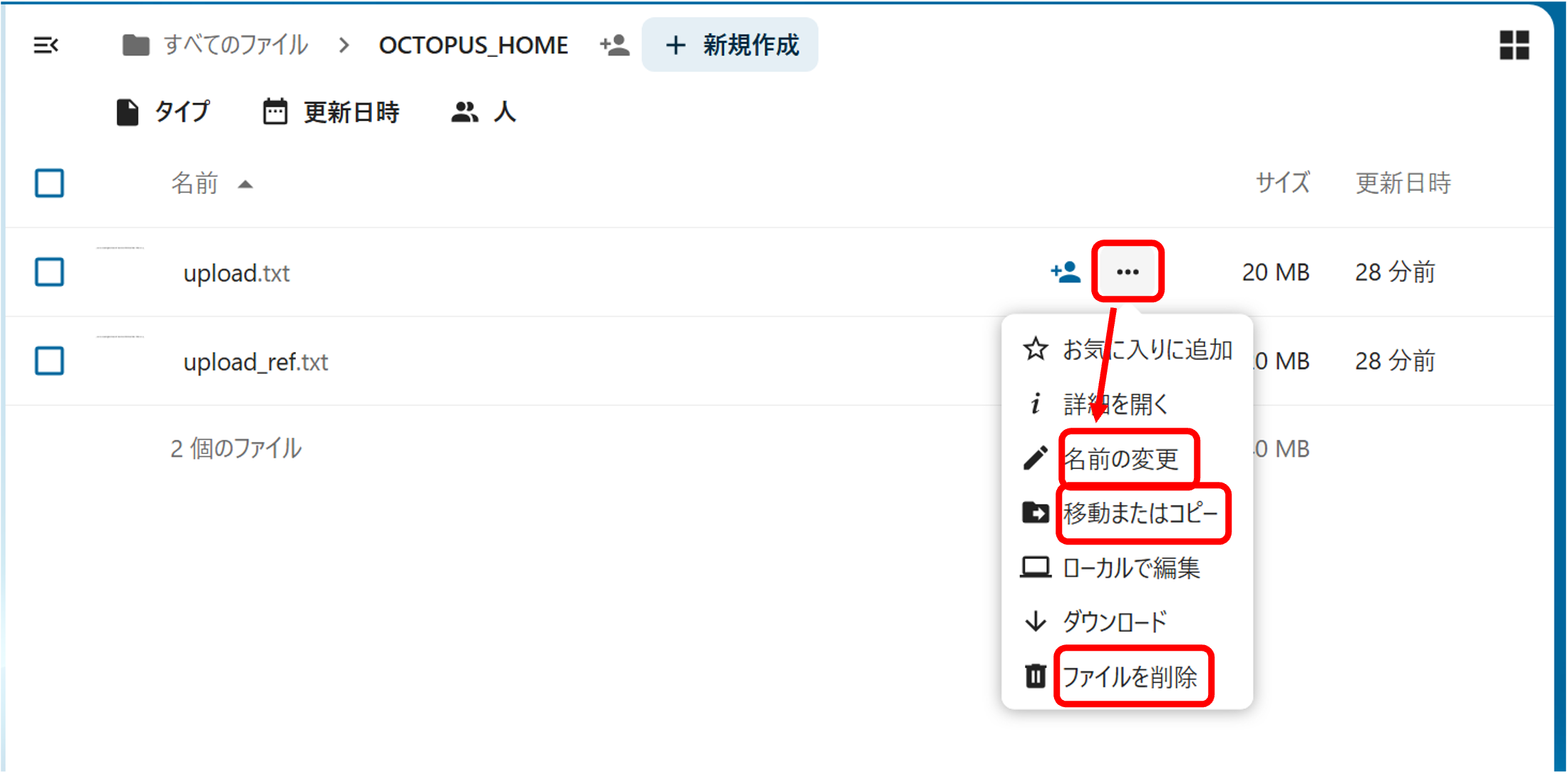
file name changing/file moving/file deleting procedure
sharing file and folder(URL sharing)
Use of External storage
how to use with Nextcloud applcation
Login procedure
OCTOPUS Nextcloud
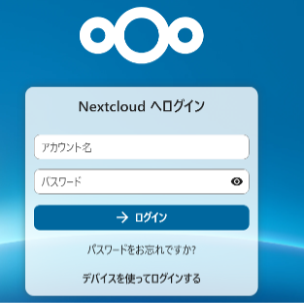
Press the login after typing in your user ID and password on OCTOPUS after the login screen is displayed.
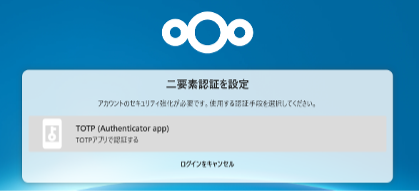
After successful password authentication, the following 2-step authentication selection screen will appear, please click "TOTP (Authenticator app)".
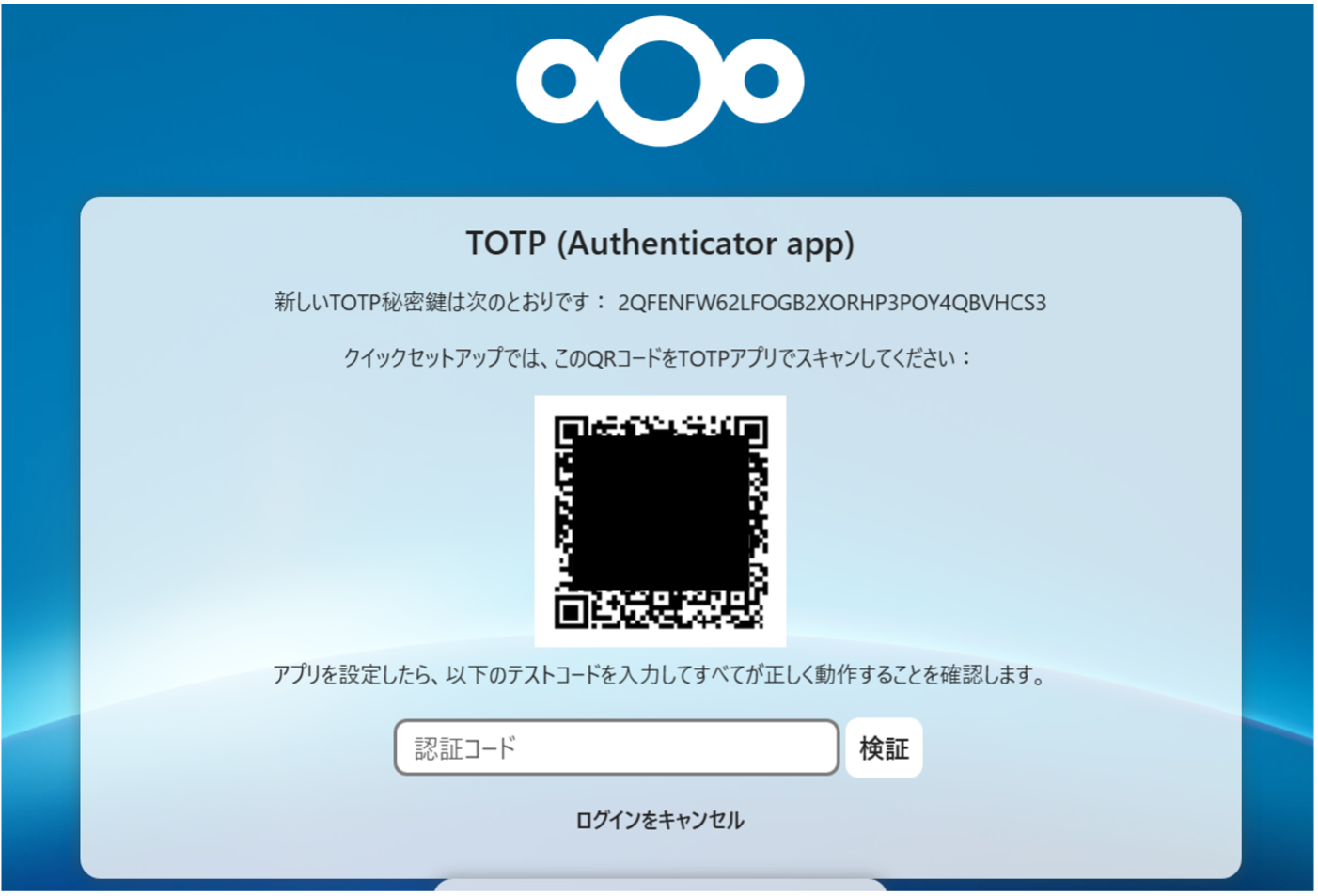
After that, a QR code will be displayed. Please read the QR code with a 2-step verification application such as Microsoft Authenticator, Google Authenticator, etc., and register with the application. Please note that this is a different code from the OCTOPUS 2-step verification.
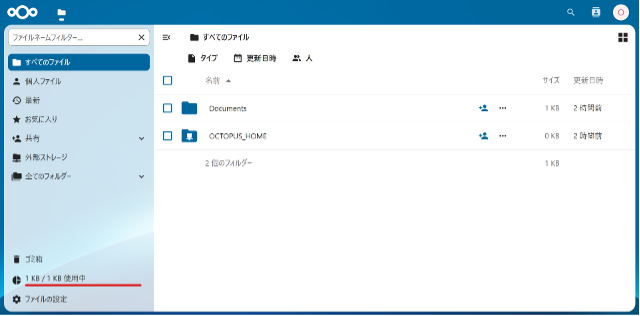
After successcully logging in, your can see your home area on OCTOPUS (/octfs/home/(userID)/OnionWeb/).
File uploading procedure
Drag and Drop
Referential upload
*When using a web browser for file transfers, uploading large files may fail because the PHP timeout is set to 90 seconds.
(Please note that the maximum uploadable file size depends on your network environment, making it difficult to specify an exact limit.)
Drag and Drop
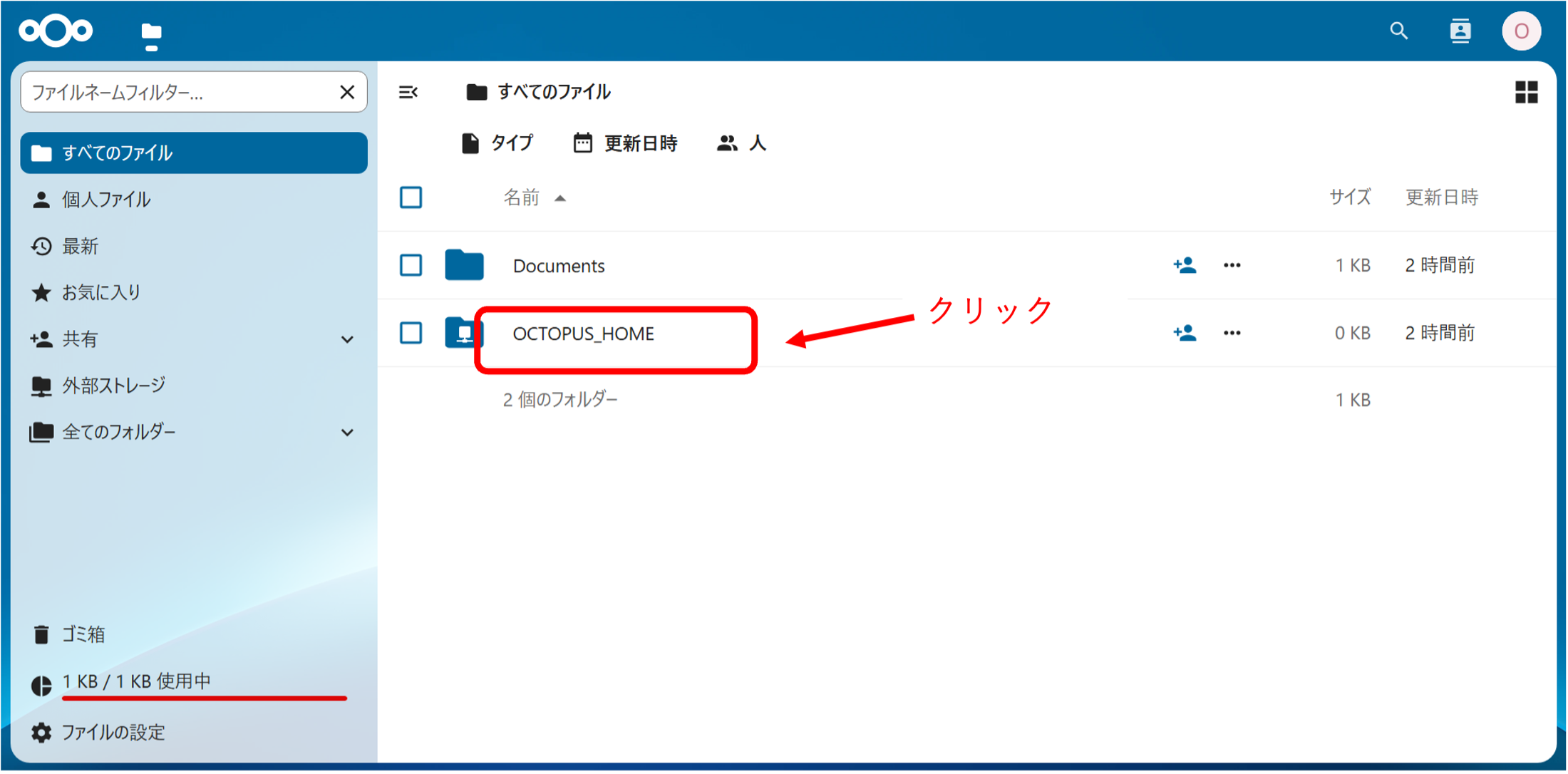
Click "OCTOPUS_HOME".
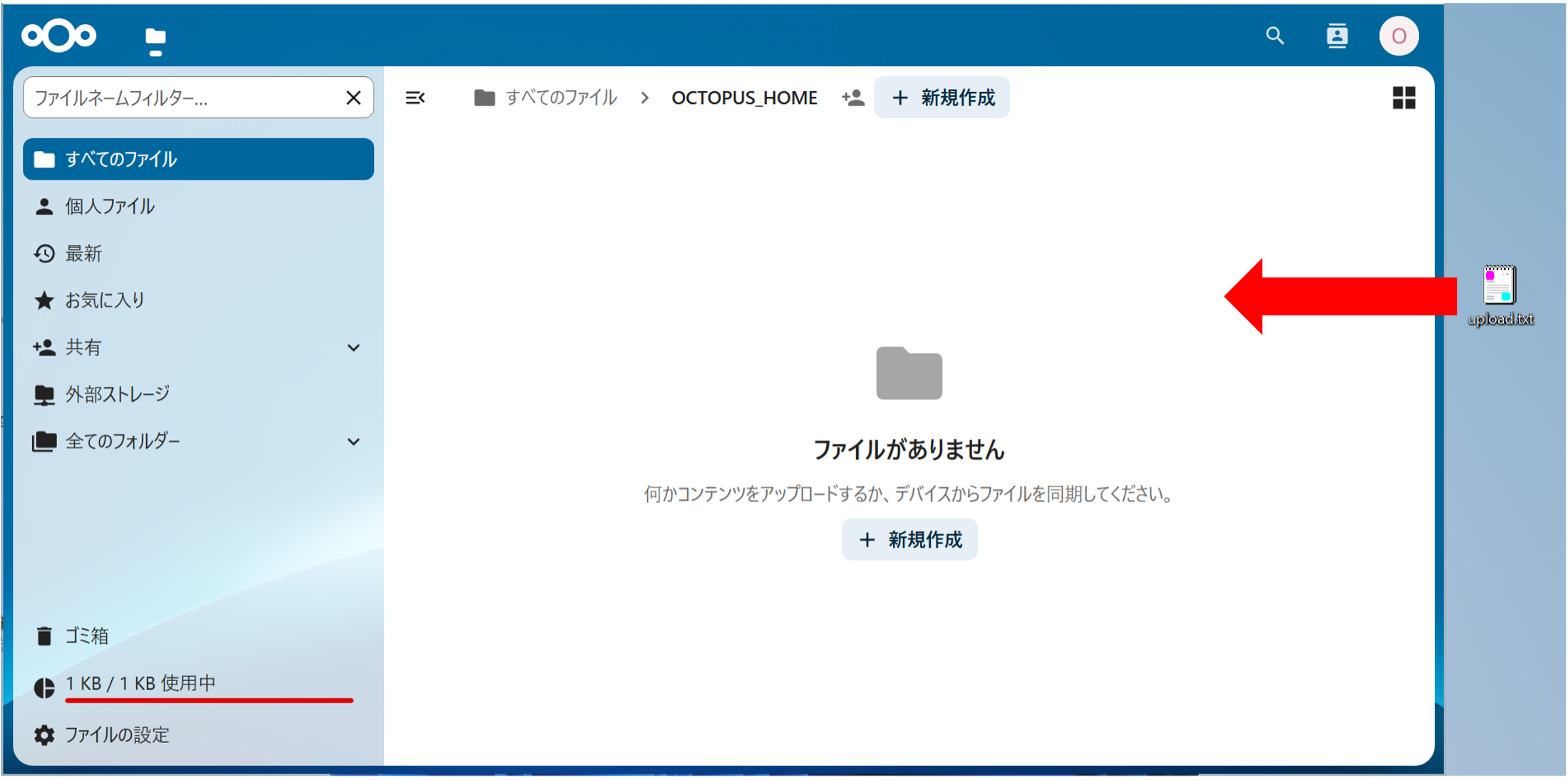
Drag and drop the file you want to upload.
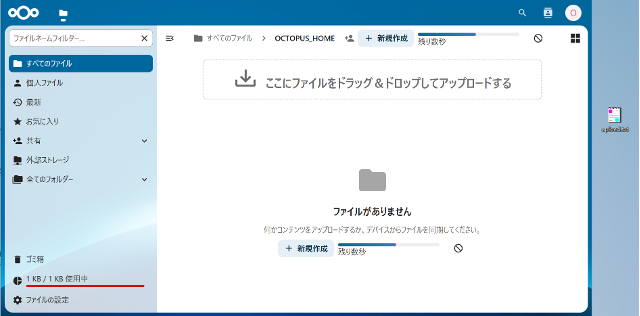
The progress bar is displayed. Please wait for the completion sipping a coffee.
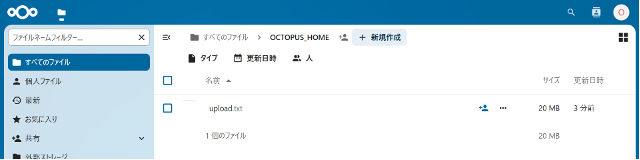
Upload completed if you can see your file on the browser.
Referential upload
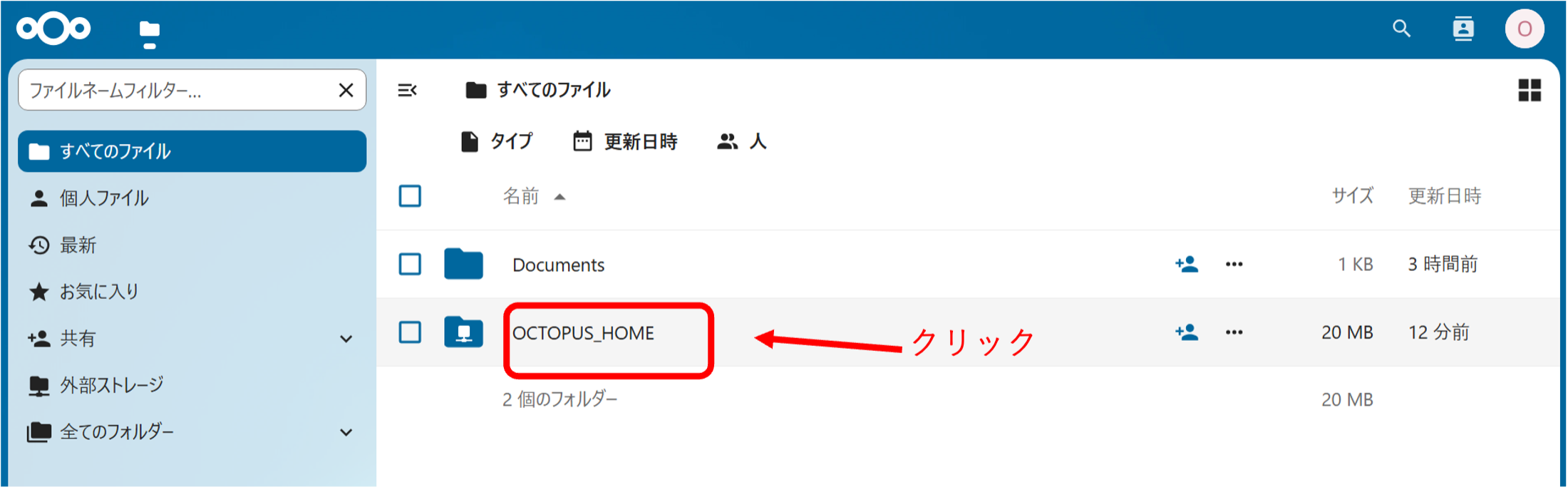
Click "OCTOPUS_HOME".
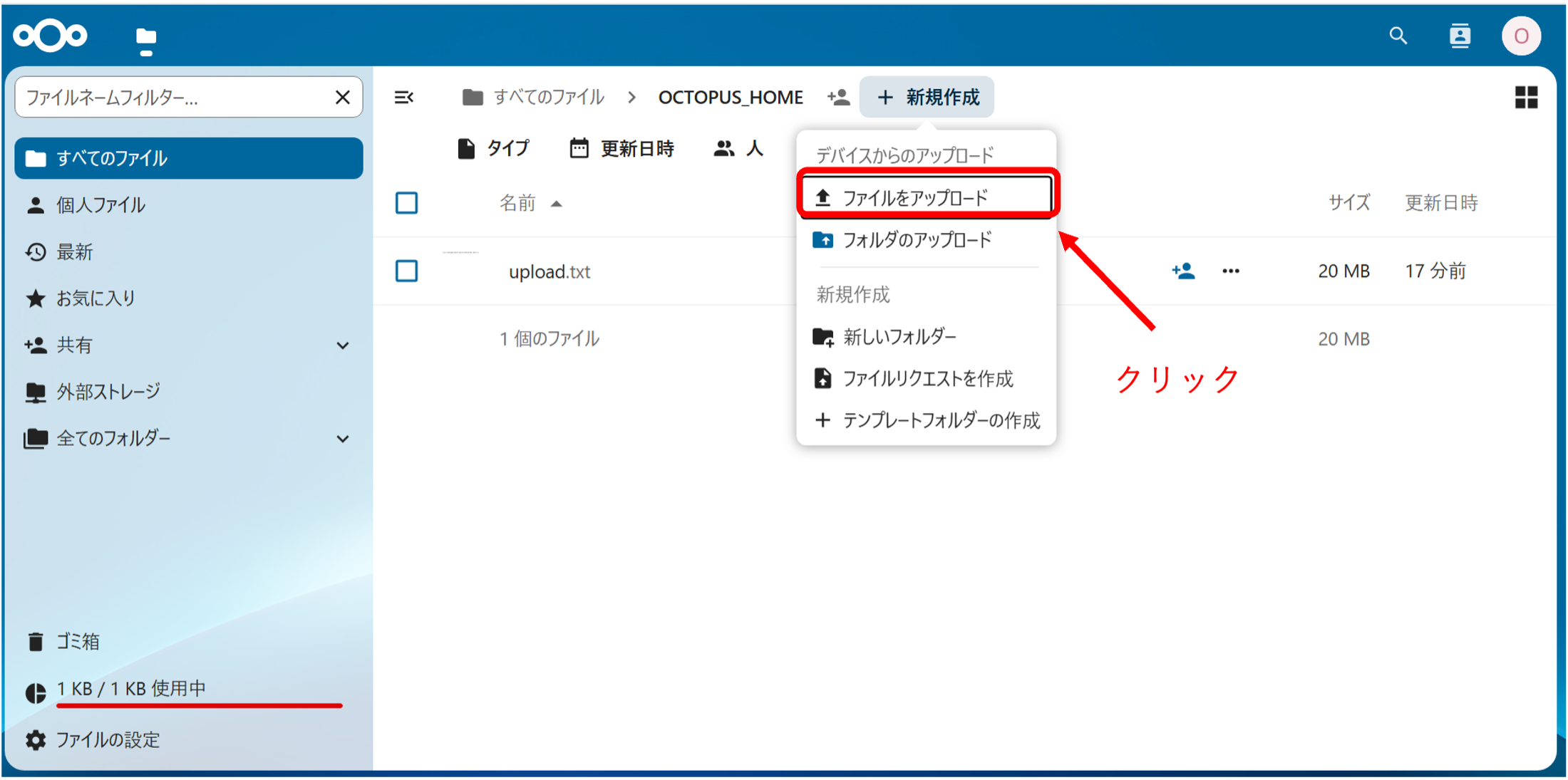
Select the "Upload files" (ファイルをアップロード) menu after clicking "+" in the upper part of the browser.
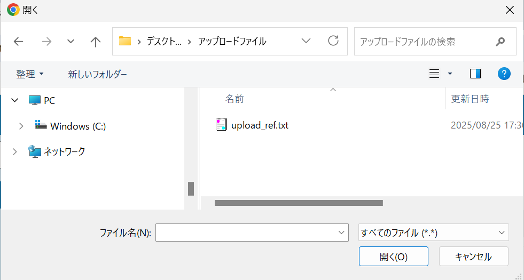
You can choose your file from the file referential dialog.
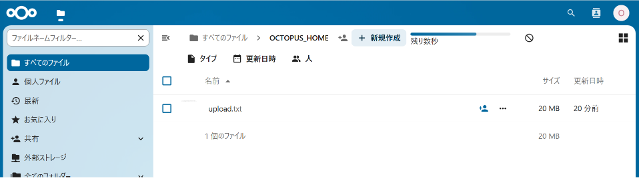
The progress bar is displayed. Please wait for the completion sipping a coffee.
Upload completed if you can see your file on the browser.
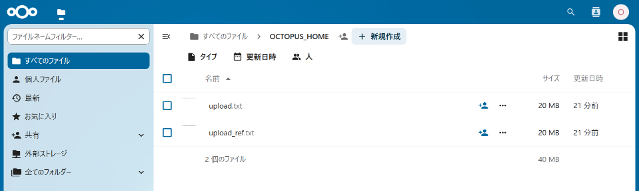
Way to download
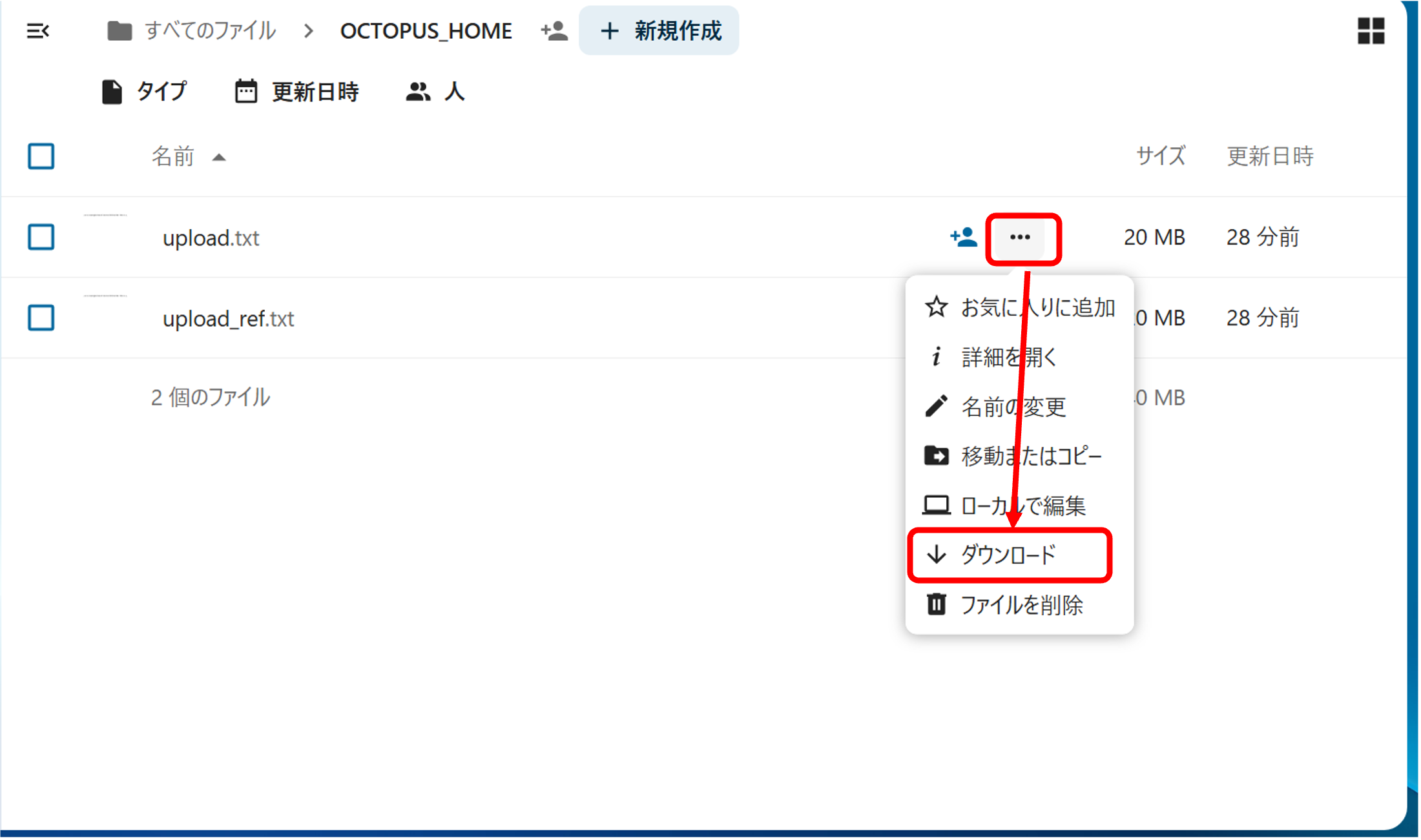
Download of a single file
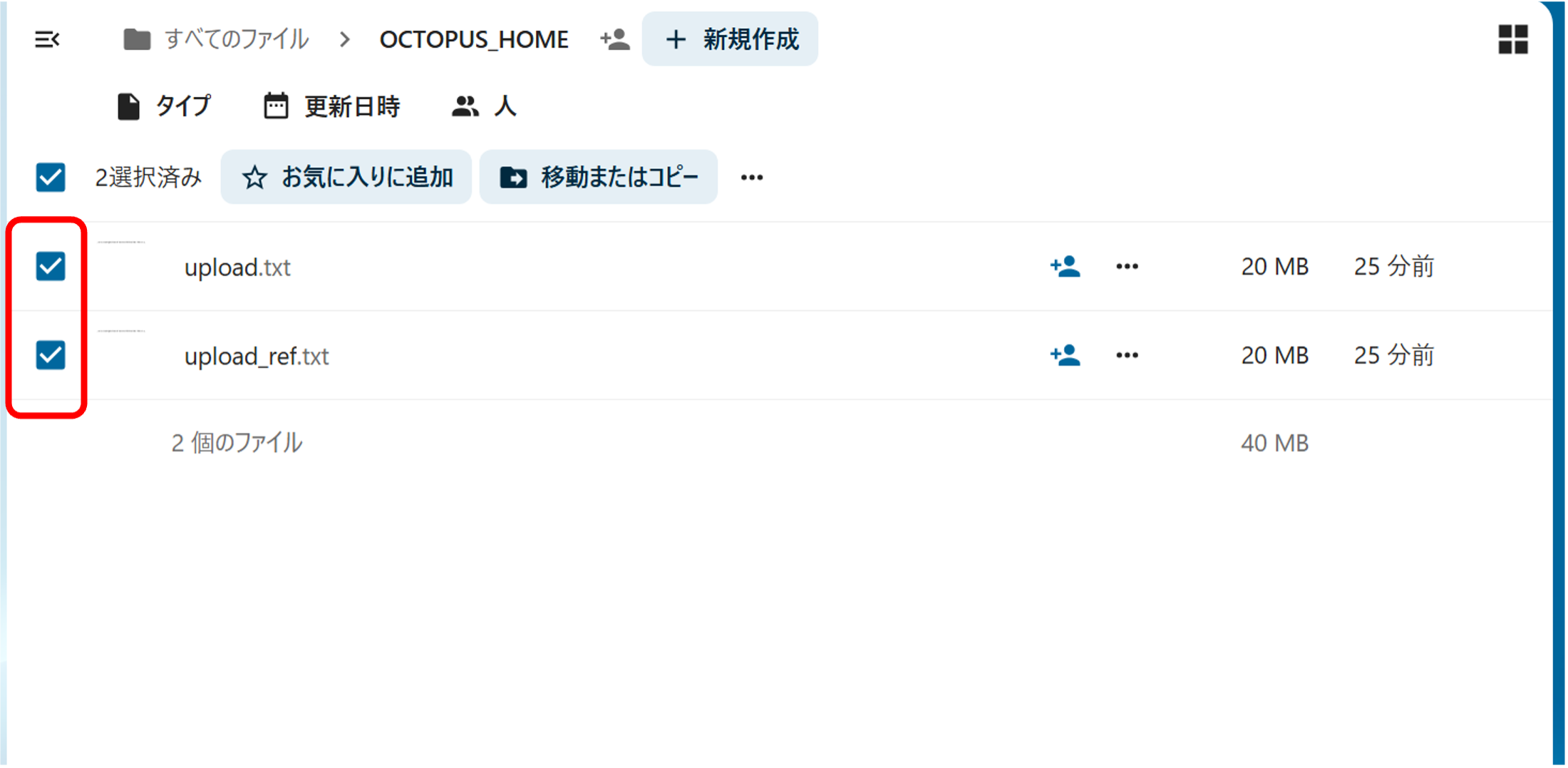
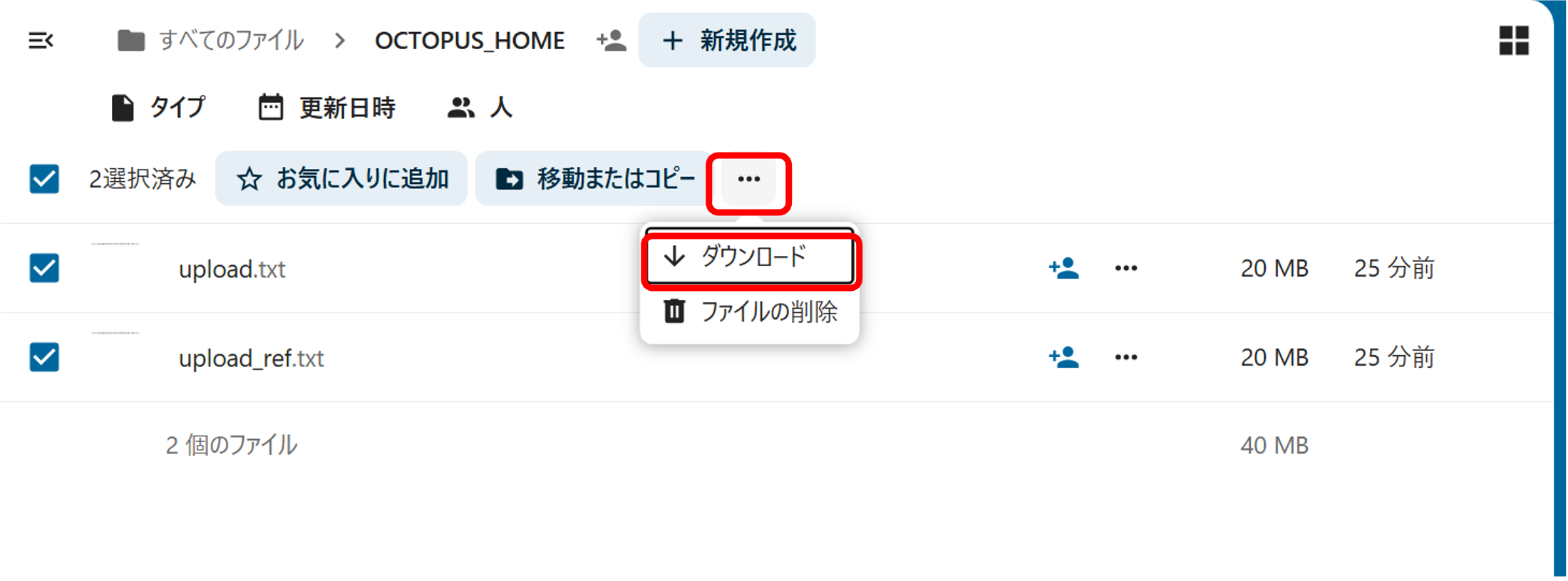
Download of multiple file
Download of a single file
Download of multiple file
Filename change, move/delete
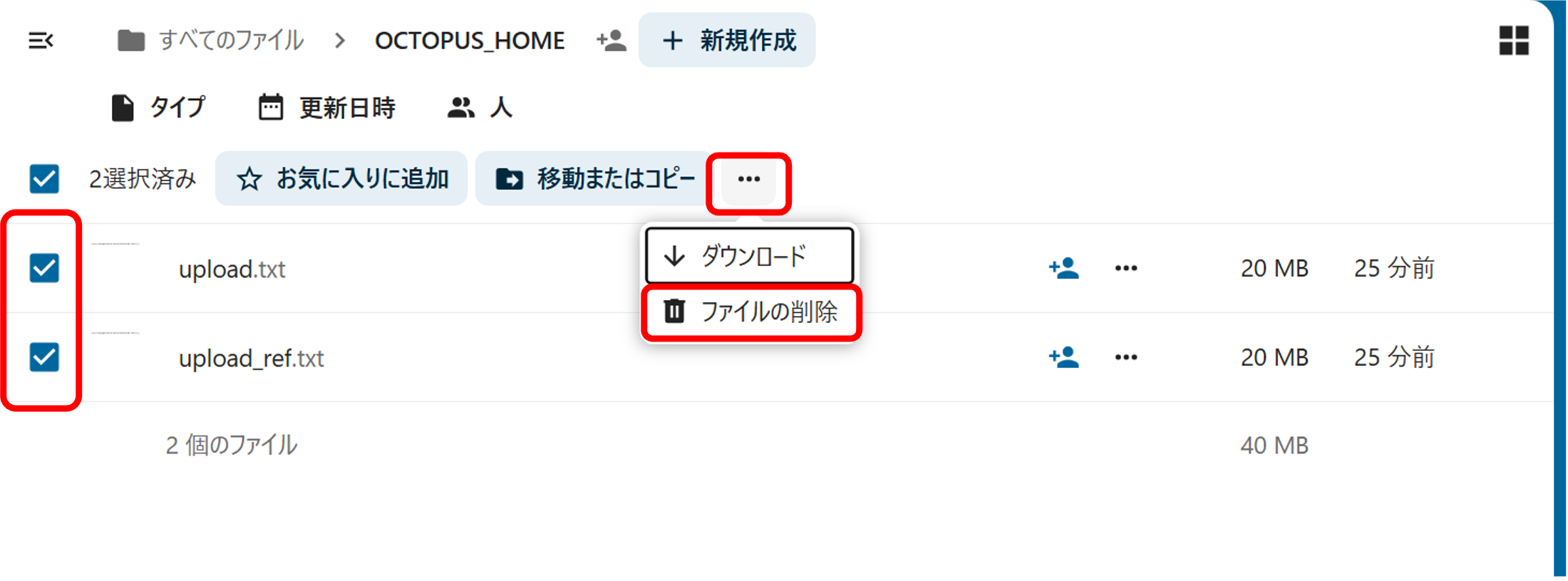
Turn on checkboxes next to files you want to delete. Please click "Delete file" (ファイルの削除) after clicking "… Actions".
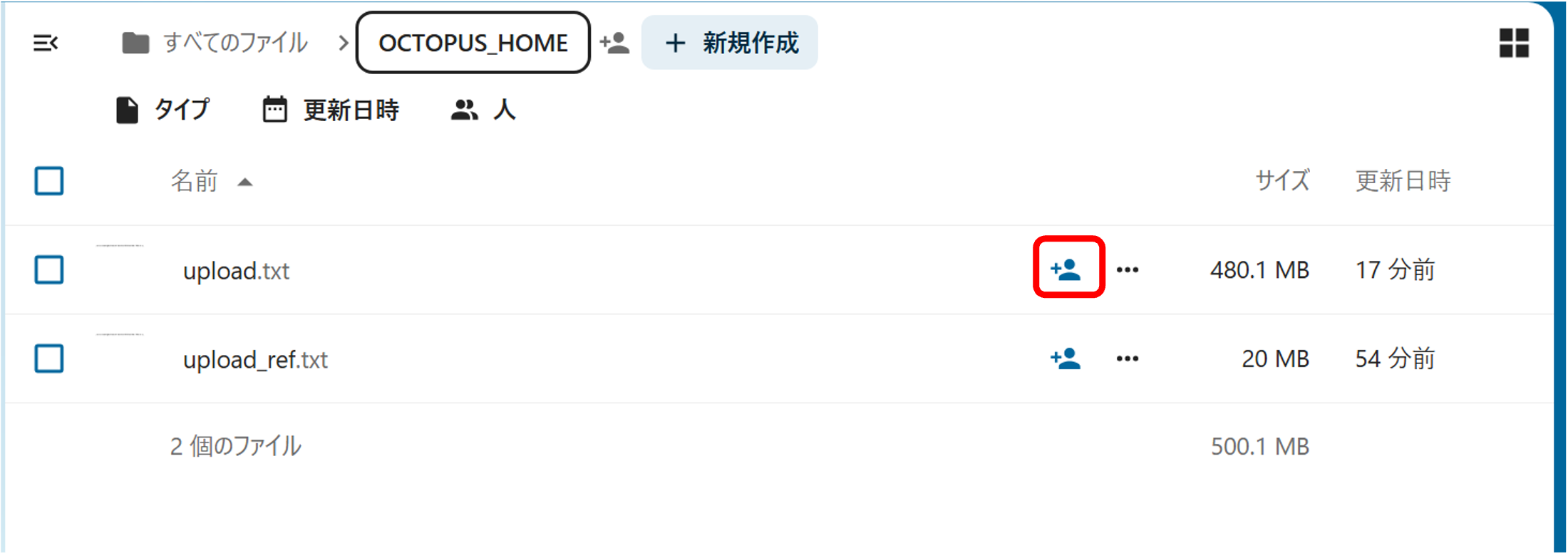
Folder/file sharing
Click the shared mark () on the right side of the file you want to share. After that, please click "+" on the right side of "Create public link" (公開リンクを作成).
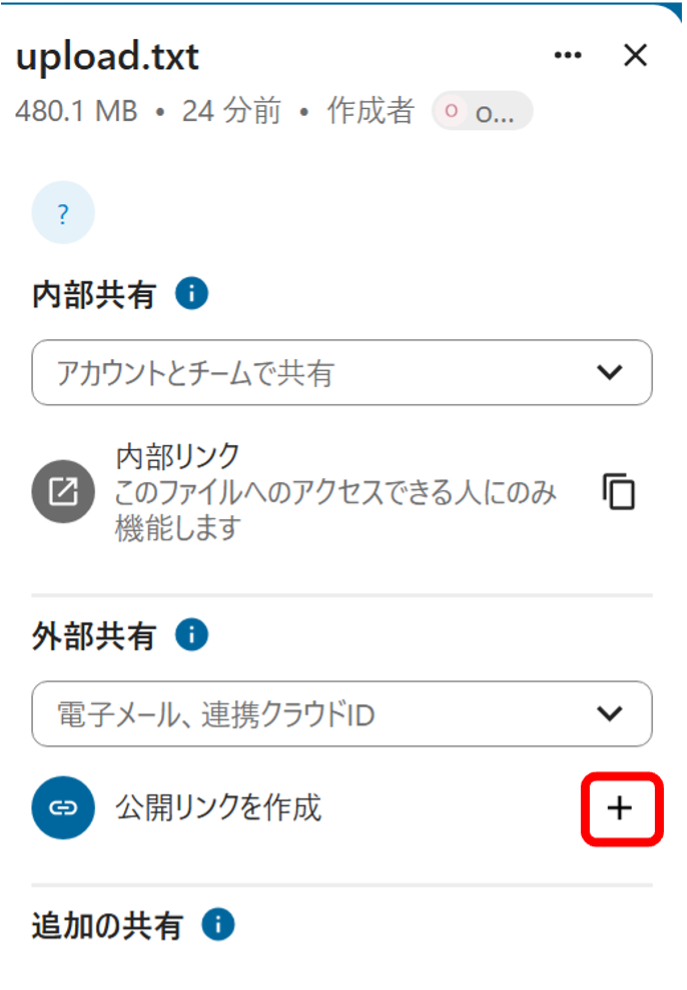
After the window like shown below is displayed.
Configure a password or use the default password suggested by the system. In the case that you yourself configure the password, your password should be longer than 12 characters.
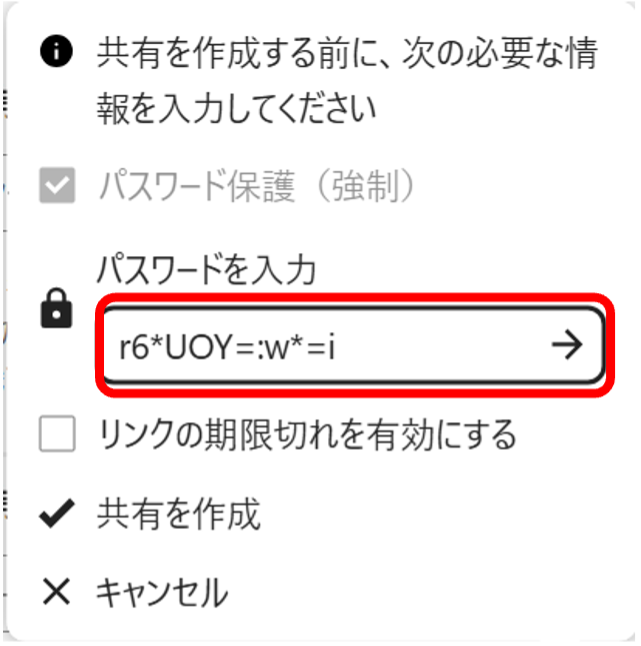
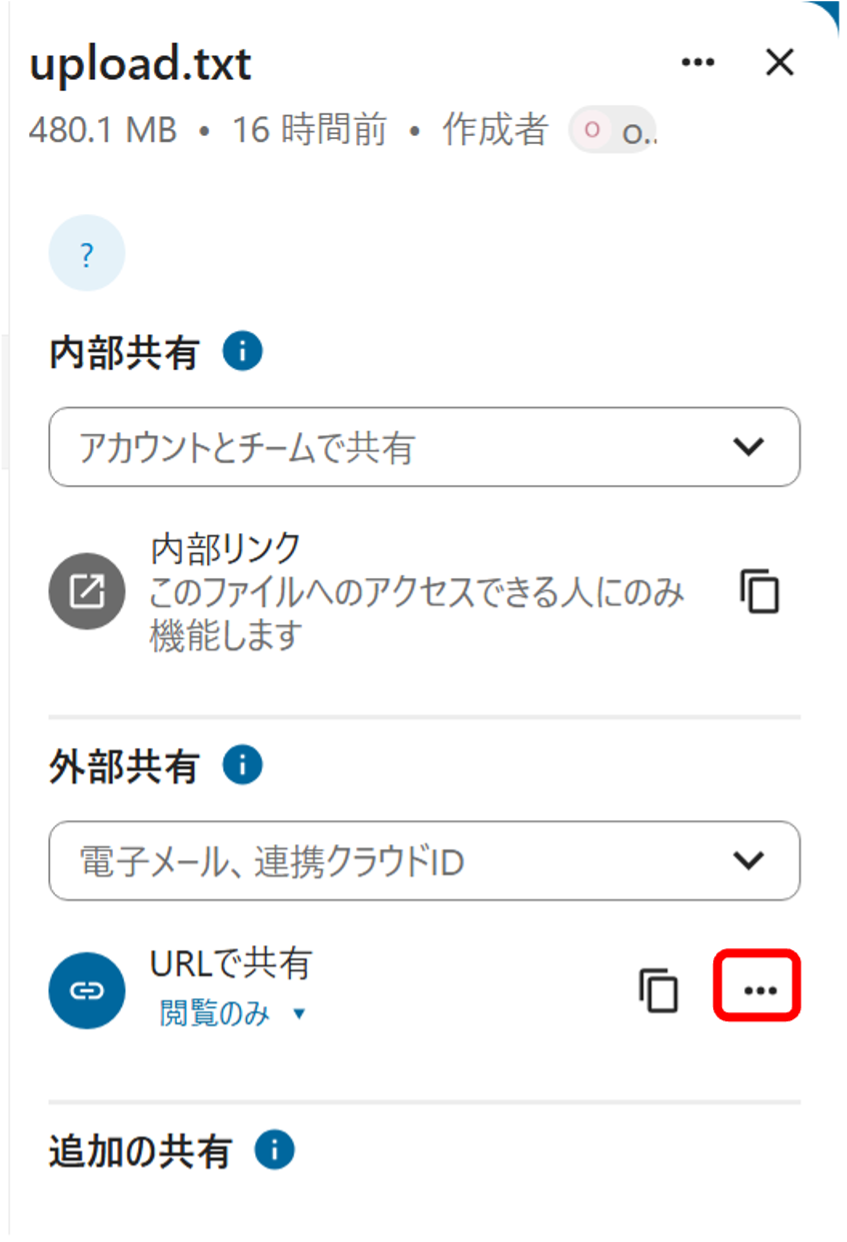
The section labeled "Create public link" (公開リンクを作成) changed to "Share link" (URLで共有).
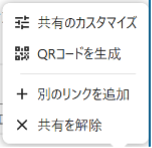
And the right icon on the right side of the section changed as shown below. Click "…".
Change the configuration as you like after the following menu is displayed. After your configuration is done, you may close the menu.

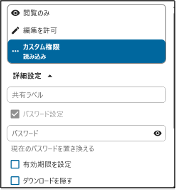
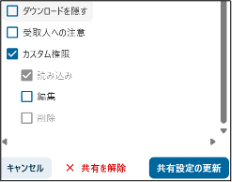
| Allow editing (編集を許可) | This is set invalid. |
|---|---|
| Share label (共有ラベル) | Label which sharing ownder administers. |
| Set password (パスワード設定) | You cannot make this invalid. You can change password as you like. |
| Set expiration date (有効期限を設定) | You can set the valid period of your sharing URL. |
| Hide download (ダウンロードを隠す) | This is set invalid. |
| Note to recipient (受取人への注意) | You can add message. |
Nextcloud remembers the sharing URL when you click the clip board icon on the right side of "Share link" (URLで共有). Send the password and the Nextcloud remembered URL to your collaborator.

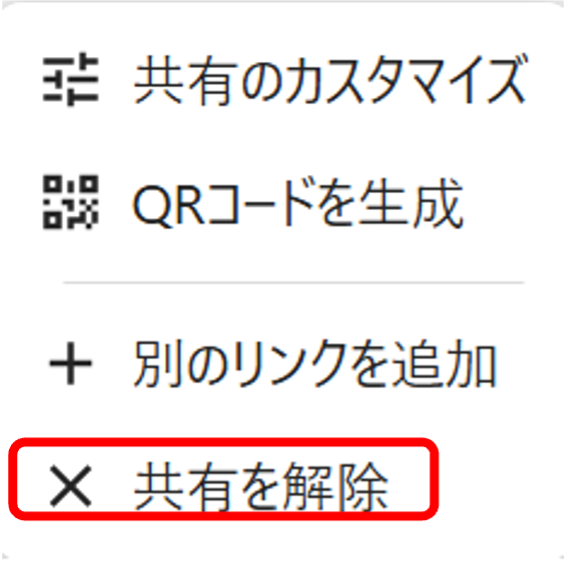
If you end "file sharing", please click "Shared" (共有中), then click "…" right side of "Share link" (URLで共有), and then click "Unshare" (共有を解除).

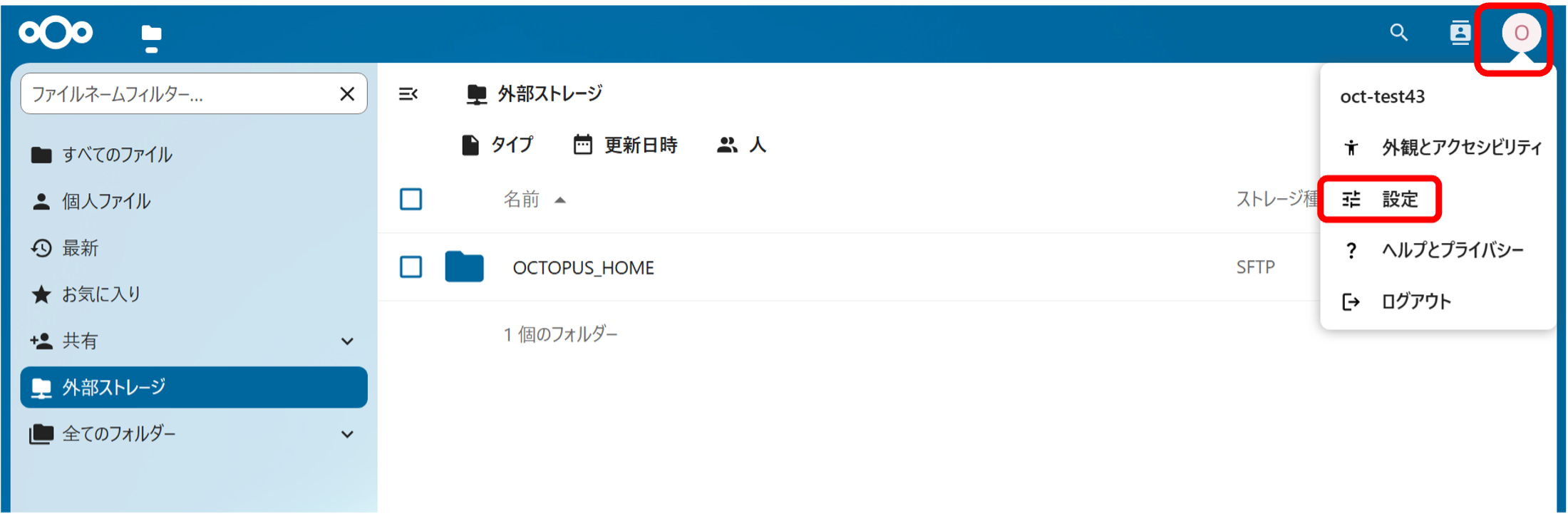
Use of external storage
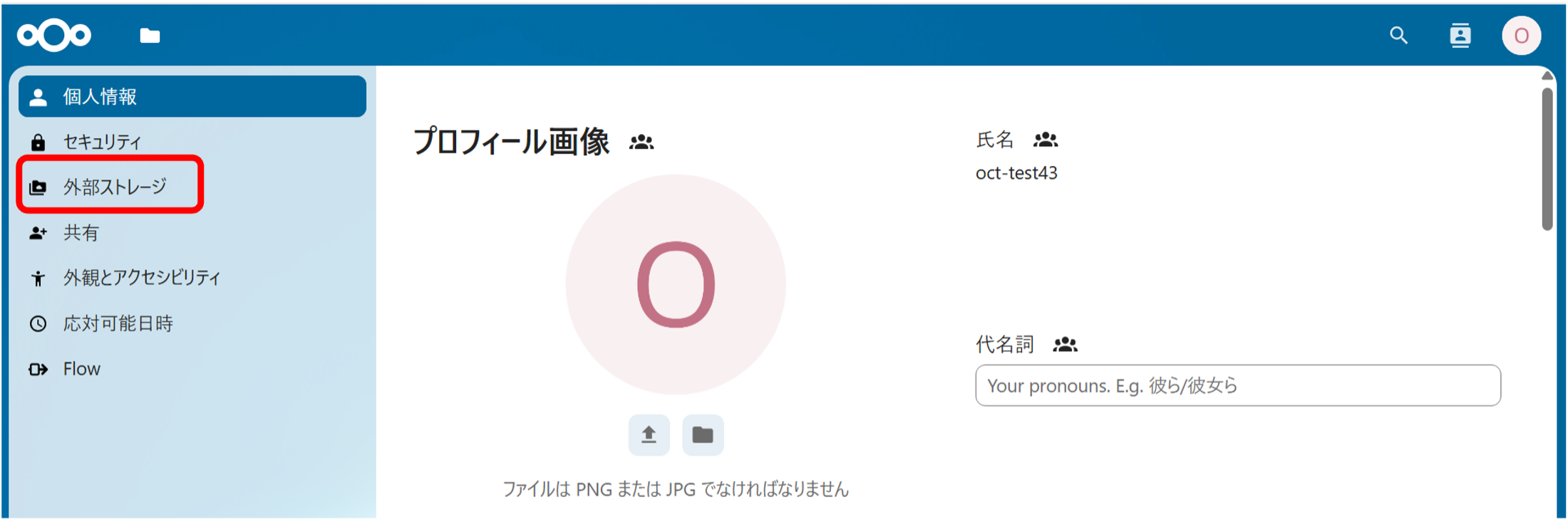
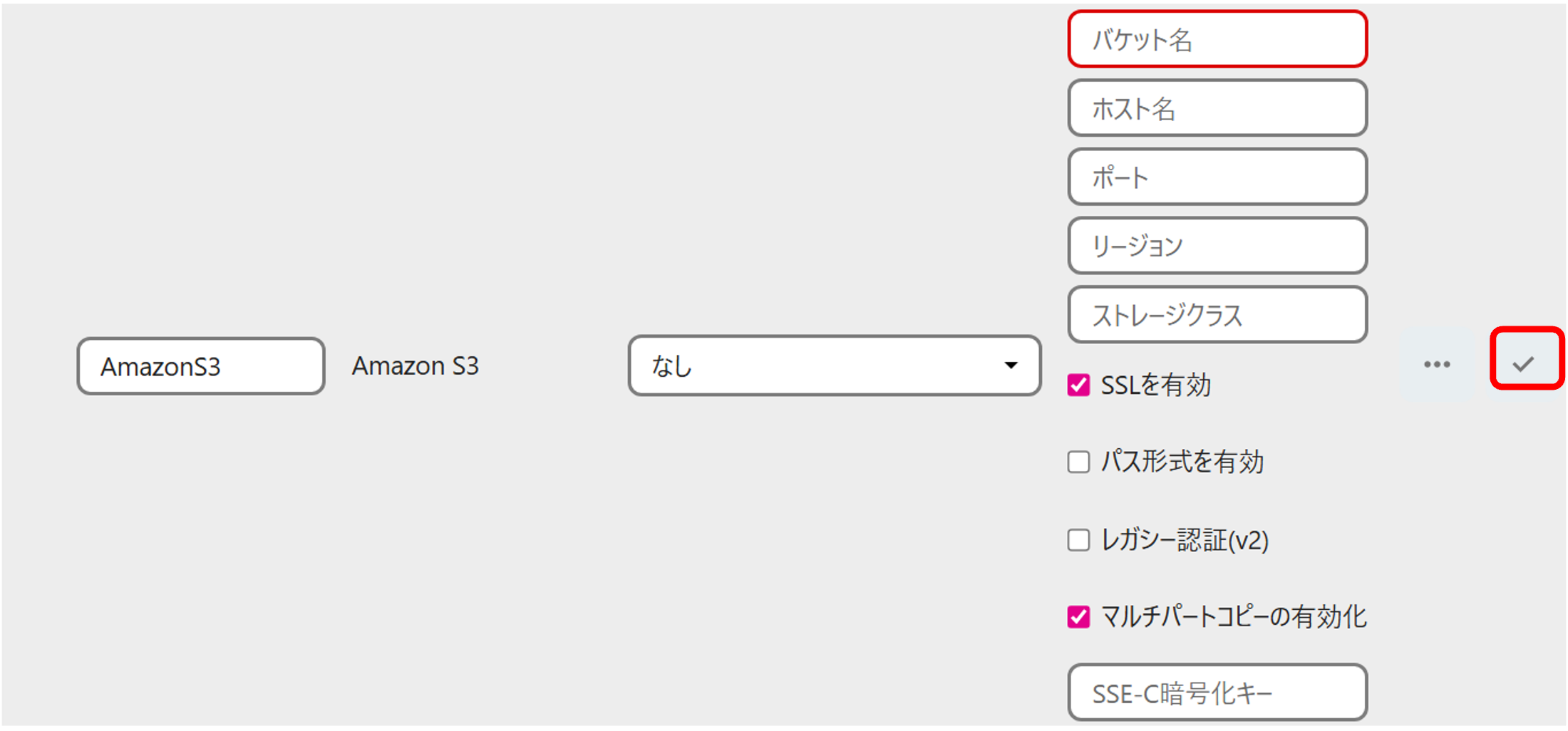
Check "✓" after completing.
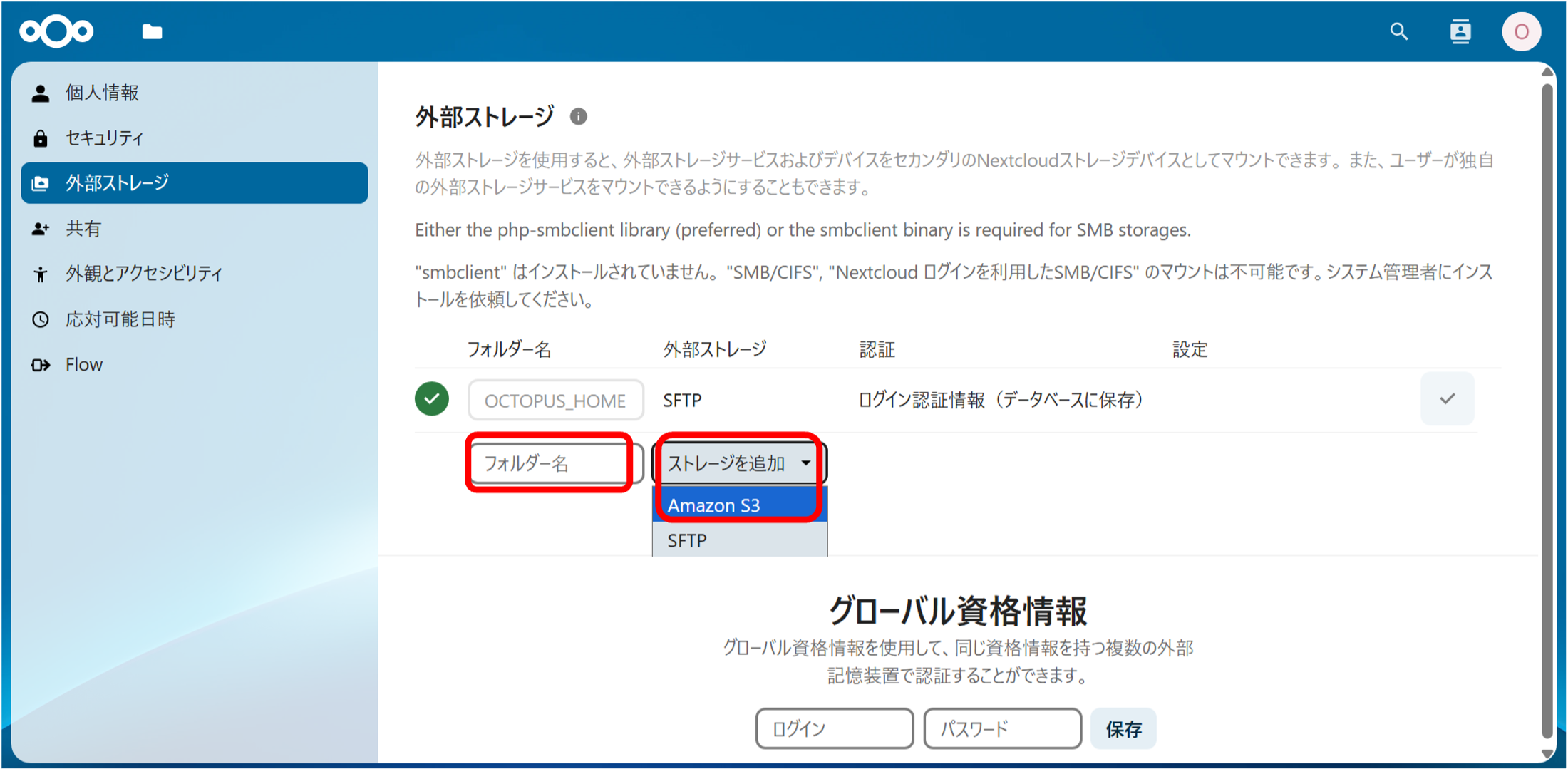
SFTP integration (SFTP)
| Folder name (フォルダー名) | You can specify as you like. |
|---|---|
| External storage (外部ストレージ) |
Choose "SFTP". |
| Authentication (認証) | Choose the one you like. The folloing input examples are when "Login and password" (ログイン名とパスワード) is selected here. |
| Host (ホスト) | Specify FQDN etc, for external storage. |
| Root (ルート) | Specify Path for external storage. |
| Login (ログイン) | Specify Username for external storage. |
| Password (パスワード) | Specify Password for external storage. |
| Advanced settings ("…") | If you want to share this folder with others, check the box for "Enable sharing". |
Amazon S3 Integration (Example: ONION-object)
| Folder name (フォルダー名) | Please enter an arbitrary name. |
|---|---|
| External storage (外部ストレージ) |
Select “Amazon S3”. |
| Bucket (バケット名) | Enter the name of the bucket you wish to connect. |
| Hostname (ホスト名) | Enter the S3 endpoint as the access destination for the external storage. For ONION-object, use “s3-osakau.oniongw.onion.osaka-u.ac.jp”. |
| Port (ポート) | Enter the port number only if required. For ONION-object, leave this field blank. |
| Region (リージョン) | Enter the region only if required. For ONION-object, leave this field blank. |
| Enable SSL (SSLを有効) | Check this box if you wish to use SSL. For ONION-object, please enable this option. |
| Enable Path Style (パス形式を有効) |
We recommend using the S3 standard method (virtual-host–style access), and this option normally does not need to be enabled. ※ Even if you enable path-style access, it will work the same and there is no functional difference. |
| Legacy (v2) authentication (レガシー認証(v2)) |
Enable this option only if you need to use legacy authentication. For ONION-object, please leave this unchecked. |
| Enable multipart copy (マルチパートコピーの有効化) |
This option normally does not need to be enabled. ※ Enabling this may improve performance when copying large objects within S3. |
| Access key (アクセスキー) | Enter the access key of the storage you are connecting. |
| Secret key (シークレットキー) | Enter the secret key of the storage you are connecting. |
| Advanced settings ("…") | If you wish to share the folder, enable “Enable sharing” (共有の有効化). |
Return to the OCTOPUS Nextcloud top page and confirm that the folder name you entered is displayed.
Amazon S3 Integration (Example: SQUID S3DS)
| Folder name (フォルダー名) | Please enter an arbitrary name. |
|---|---|
| External storage (外部ストレージ) |
Select “Amazon S3”. |
| Bucket (バケット名) | Enter the name of the bucket you wish to connect. |
| Hostname (ホスト名) | Enter the S3 endpoint as the access destination for the external storage. For SQUID S3DS, use “squidgw.hpc.cmc.osaka-u.ac.jp”. |
| Port (ポート) | Enter the port number only if required. For SQUID S3DS, leave this field blank. |
| Region (リージョン) | Enter the region if required. For SQUID S3DS, enter “osakau”. |
| Enable SSL (SSLを有効) | Check this box if you wish to use SSL. For SQUID S3DS, please enable this option. |
| Enable Path Style (パス形式を有効) |
We recommend using the S3 standard method (virtual-host–style access), and this option normally does not need to be enabled. ※ Even if you enable path-style access, it will work the same and there is no functional difference. |
| Legacy (v2) authentication (レガシー認証(v2)) |
Enable this option only if you need to use legacy authentication. For ONION-object, please leave this unchecked. |
| Enable multipart copy (マルチパートコピーの有効化) |
This option normally does not need to be enabled. ※ Enabling this may improve performance when copying large objects within S3. |
| Access key (アクセスキー) | Enter the access key of the storage you are connecting. |
| Secret key (シークレットキー) | Enter the secret key of the storage you are connecting. |
| Advanced settings ("…") | If you wish to share the folder, enable “Enable sharing” (共有の有効化). |
Return to the OCTOPUS Nextcloud top page and confirm that the folder name you entered is displayed.
Use from the application
For details, please refer to "7.1.5 How to use the app" in the OCTOPUS User Manual.
Reference
