
Introduction
After connecting, you can edit files on OCTOPUS in VS Code and perform operations such as compiling programs and submitting jobs from the terminal within VS Code.
Note: This page uses a connection to the HPC frontend (octopus.hpc.osaka-u.ac.jp) as an example.
Note: If you are using OCTOPUS for the first time, please complete the initial setup for two-factor authentication using a regular SSH connection beforehand.
For information on how to log in to OCTOPUS via regular SSH and how to configure two-factor authentication, please refer to the following page.
How to Log In to OCTOPUS
If you are using SQUID, please refer to the following page.
How to Log In to SQUID
Connection Information
| Server | Host Name |
|---|---|
| HPC Frontend | octopus.hpc.osaka-u.ac.jp |
| Dedicated Frontend | voctopusXX.hpc.osaka-u.ac.jp |
Note: A separate application is required to use a dedicated frontend. Once your application is approved, you will be notified of the connection destination.
| Connection Method | SSH |
|---|---|
| Authentication Method | Password Authentication + Two-Factor Authentication |
| OS Japanese Locale | ja_JP.UTF-8 |
Preparing VS Code
Installing VS Code
Installing the "Remote - SSH" Extension
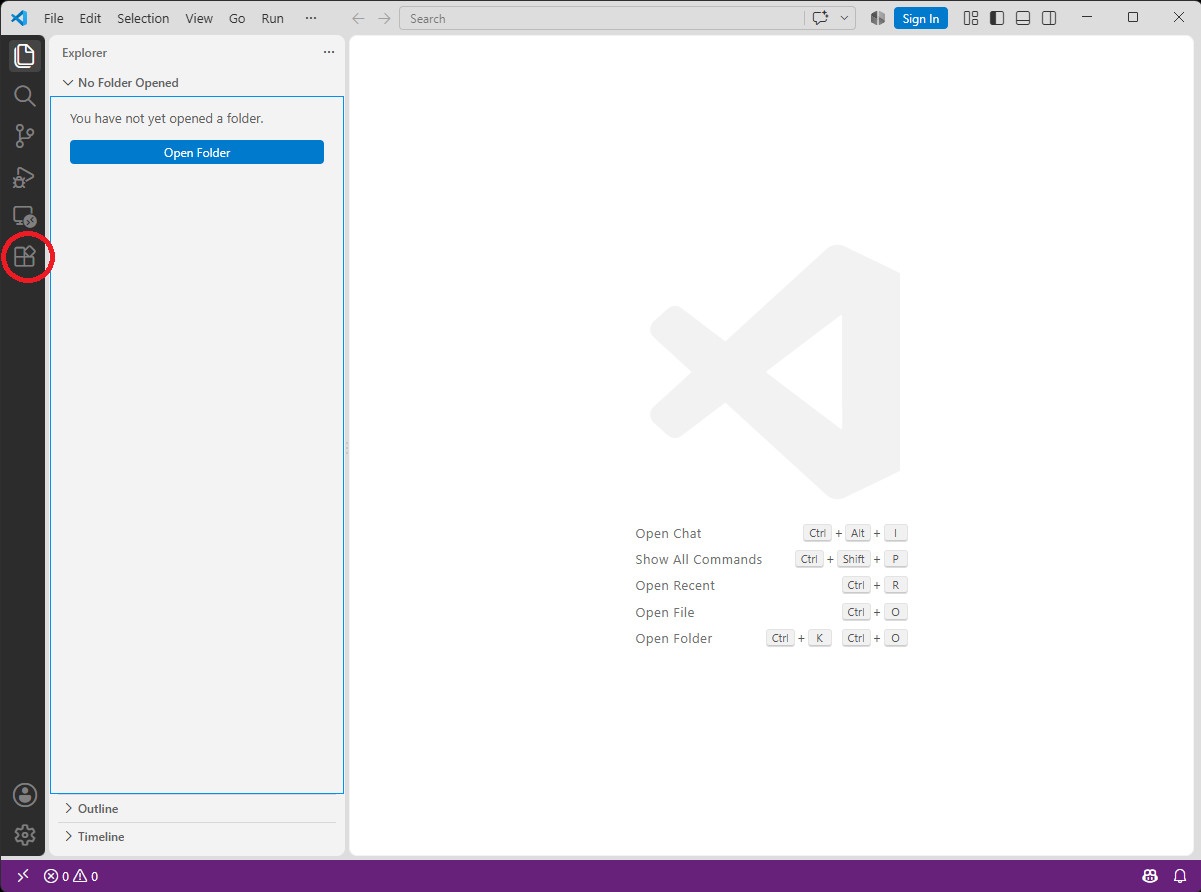
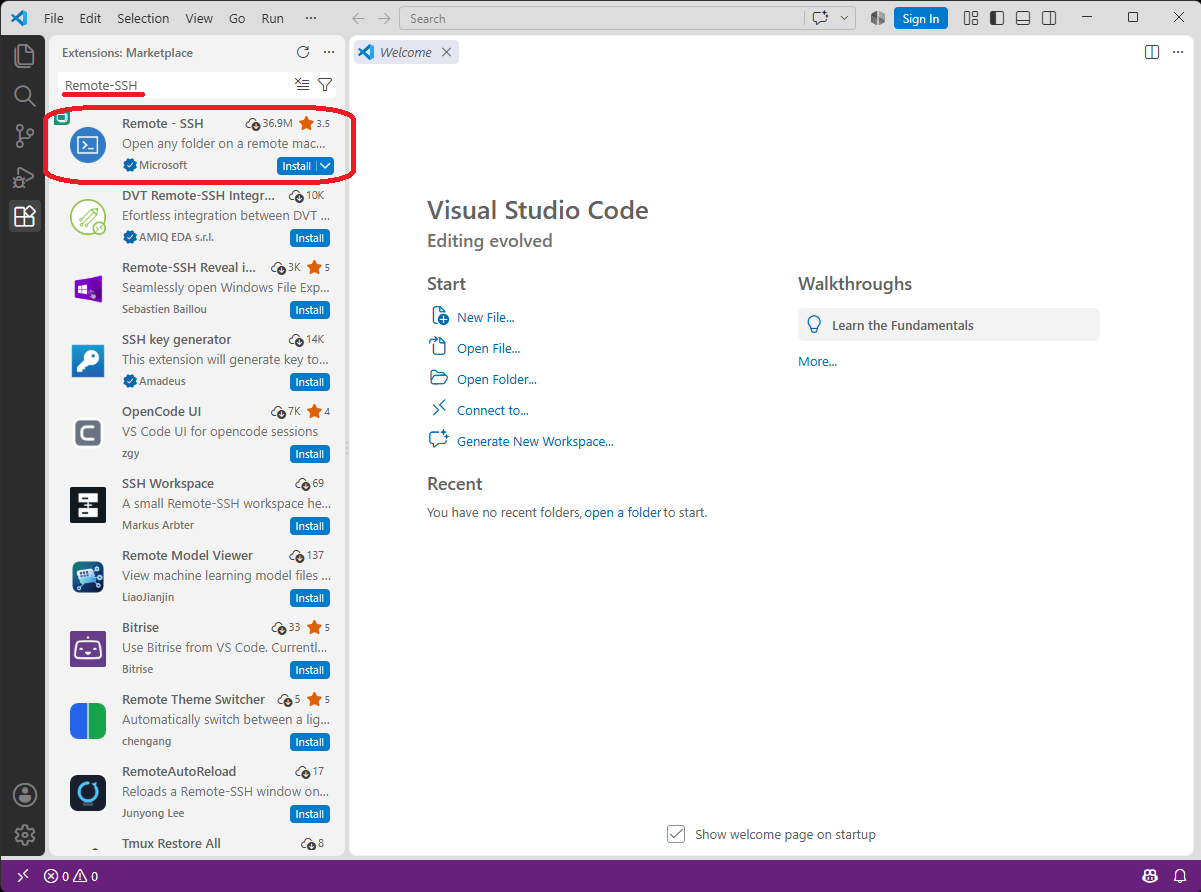
Enter Remote - SSH in the search box. Select "Remote - SSH" provided by Microsoft, then click "Install" to install it. Once the installation is complete, you will be able to connect to SSH servers from VS Code.
Registering an SSH Connection (Optional)
| OS | Configuration File |
|---|---|
| Windows | C:\Users\username\.ssh\config |
| macOS / Linux | ~/.ssh/config |
To register the HPC frontend, enter the following:
Host OCTOPUS
HostName octopus.hpc.osaka-u.ac.jp
User USER_ID
For example, if your user ID is "u12345", the configuration would be as follows:
Host OCTOPUS
HostName octopus.hpc.osaka-u.ac.jp
User u12345
The "OCTOPUS" part of "Host OCTOPUS" is the name of the connection destination displayed in VS Code. You can specify any name you prefer.
Connecting to OCTOPUS from VS Code
(1) Start Remote - SSH
| OS | Operation |
|---|---|
| Windows / Linux | Ctrl + Shift + P or F1 |
| macOS | Command + Shift + P or F1 |
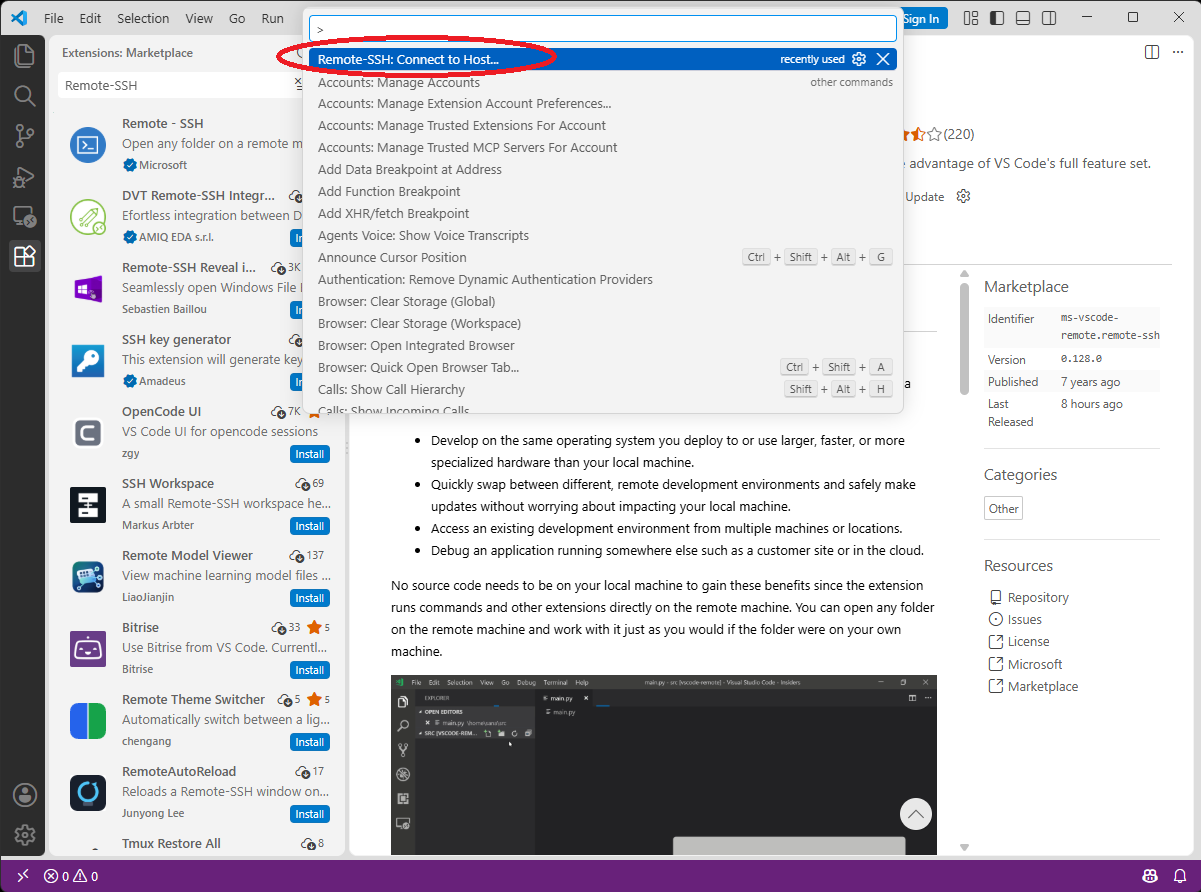
Enter "Remote-SSH: Connect to Host..." in the Command Palette and select it.
(2) Select the Connection Destination
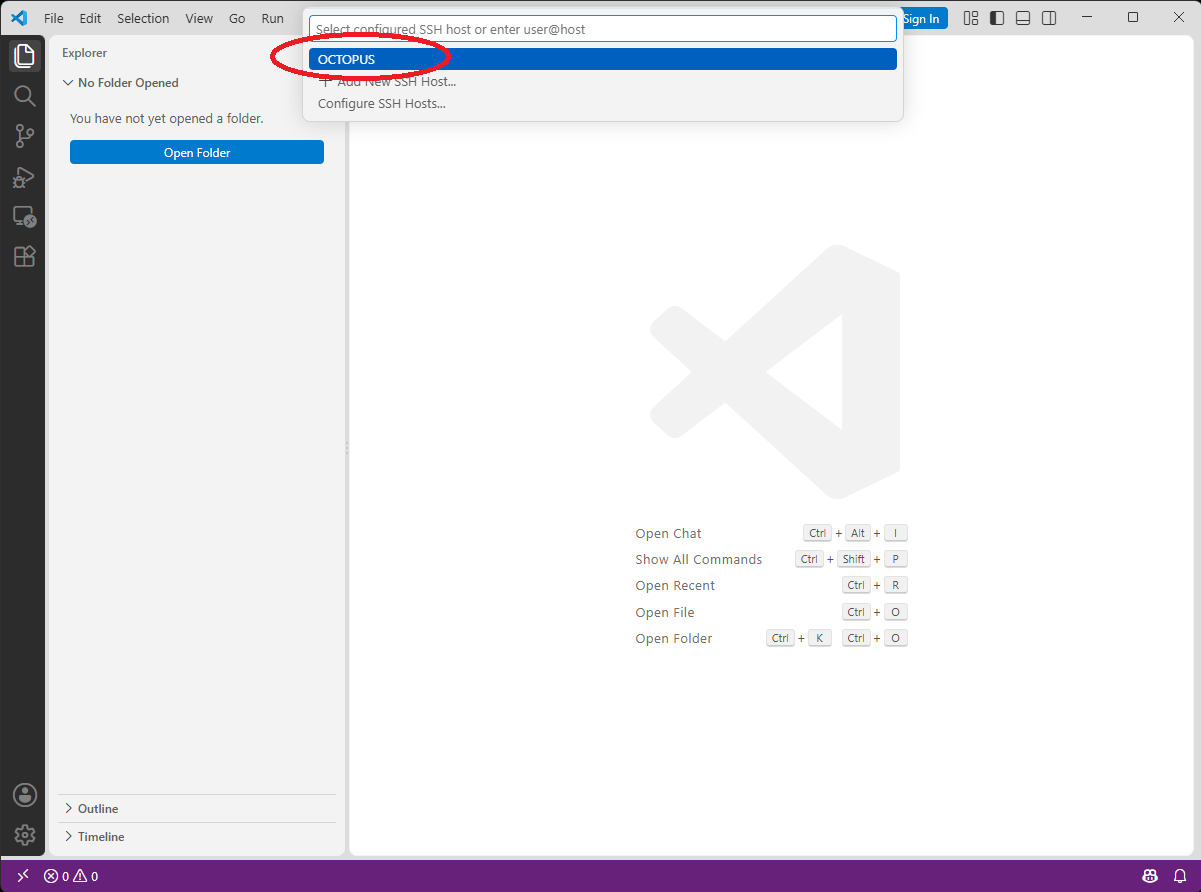
If you are not using an SSH configuration file, directly specify "USER_ID@octopus.hpc.osaka-u.ac.jp".
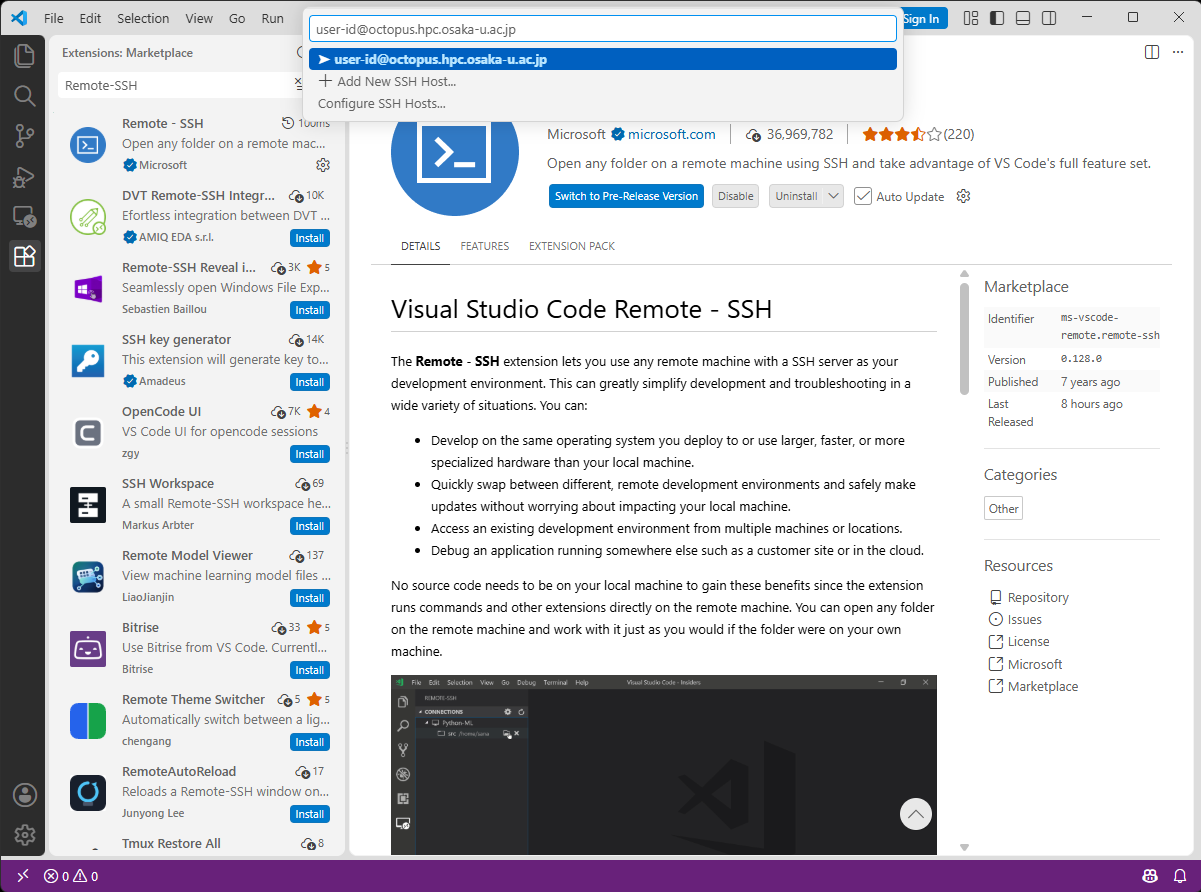
If you are prompted to select the operating system of the remote host when connecting for the first time, select Linux.
(3) Enter Your Password
If the input field displays "Enter password", enter your password.
If the input field displays "Enter verification code", enter the one-time password for two-factor authentication.
Note: The one-time password is updated every 30 seconds. Be sure to enter the latest one-time password when connecting.
Note: You may be prompted to enter your password or one-time password multiple times during the connection process. If this occurs, follow the on-screen instructions and enter the requested information again.

(4) Connection Complete
For example, if "SSH: OCTOPUS" or "SSH: octopus.hpc.osaka-u.ac.jp" is displayed, the Remote - SSH connection to OCTOPUS has been successfully established.

Opening Files on OCTOPUS
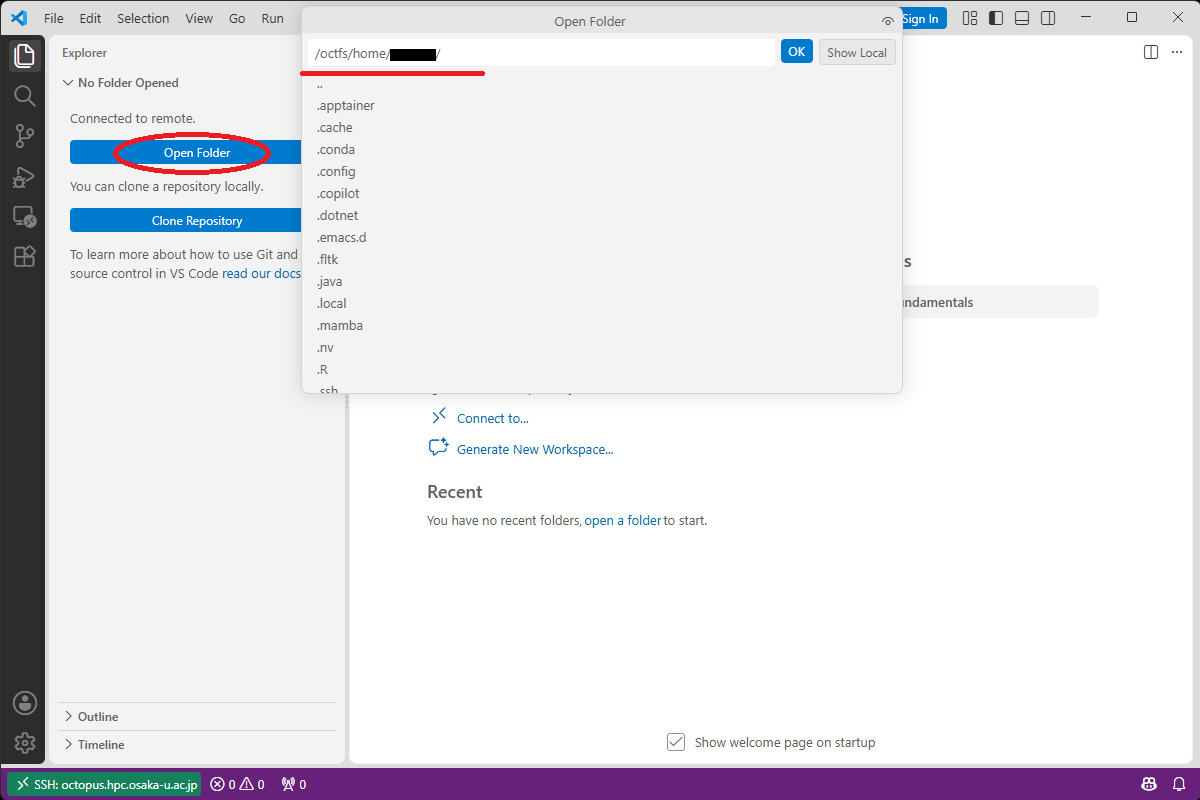
If you open your home directory, you can directly edit the files in that directory from the Explorer in VS Code.
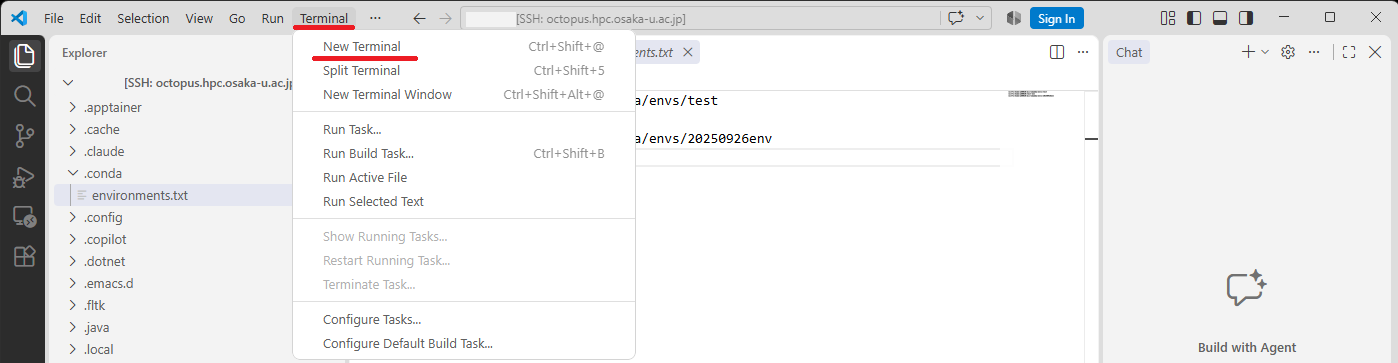
Using the VS Code Terminal
From this terminal, you can run Linux commands and submit/check jobs in the same way as when logging in via regular SSH.
Please do not run computationally intensive processes directly on the frontend node. Use the job scheduler instead.
Disconnecting
Select "Close Remote Connection" from the displayed menu to terminate the Remote - SSH connection to OCTOPUS.
