
First
To access OCTOPUS, you need to access D3C-Sinet, a network of supercomputers connected to which the National Common Use Supercomputing System is connected. This system provides an HPC front-end and an Occupied front-end to access OCTOPUS.
Basic access to OCTOPUS is through the login to Login node using SSH. After logging in, users are automatically connected to the Frontend node as the working computing server. Users can develop and compile their own programs as well as submit jobs through the scheduler.
* This page is how to login OCTOPUS. If you login SQUID, please see this page.
The following PDF is Getting Started Guide.
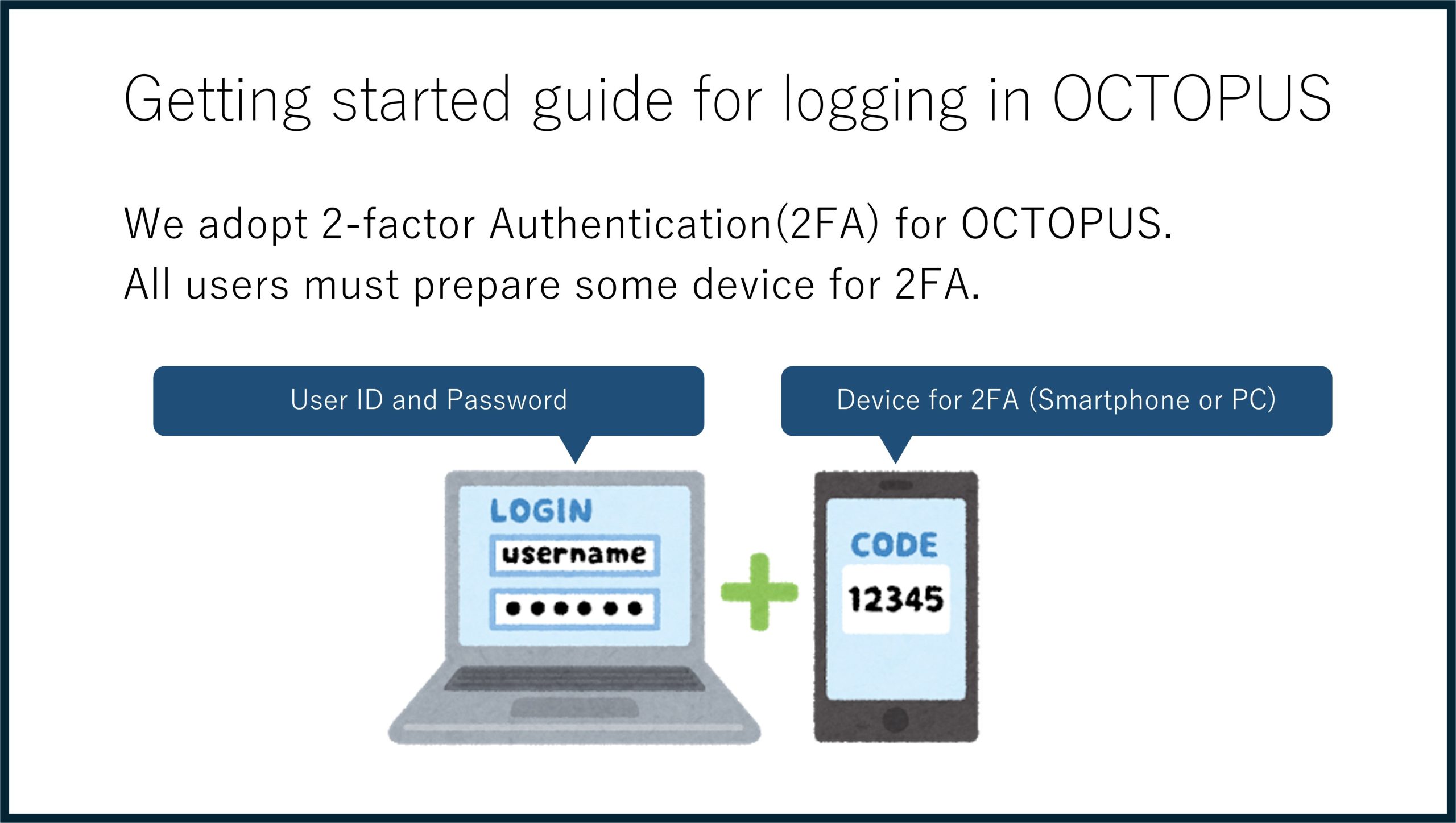
If you can not the above PDF file, or If you want to know in detail, please see the following:
Preparation
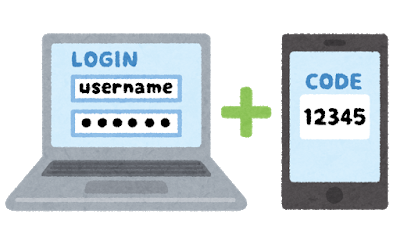
We adopt 2-factor Authentication(2FA) for OCTOPUS. All users must prepare some device for 2FA.
Login information
Connecting the host and other information is as follows:
| Server | Host name |
|---|---|
| HPC front-end | octopus.hpc.osaka-u.ac.jp |
| Occupied front-end | voctopusXX.hpc.osaka-u.ac.jp |
*If you want to use an Occupied front-end, you need to apply separately. Once your request is approved, you'll be contacted to connect to.
For the above Host name, please access it using the following connection method:
| How to connect | SSH |
|---|---|
| Authentication Methods | 2-factor Authentication |
| OS Japanese Code | ja_JP.UTF-8 |
Password
You can use your smartphone or PC as a device for 2FA. Please install any one of the following applications:
Application for 2FA
In order to SSH log in to the front-end, you need to go through two-factor authentication using Google Authenticator, etc. Prepare the application required for two-factor authentication and install it on your device or smartphone.
2FA applications that have been verified to connect are:
| OS | Application | Distributor |
|---|---|---|
| Android | Google Authenticator | Google Play Store |
| Microsoft Authenticator | Google Play Store | |
| iOS | Google Authenticator | Apple App Store |
| Microsoft Authenticator | Apple App Store | |
| Windows | WinAuth | Github |
| macOS | Step Two | Apple App Store |
The following steps will use Google Authenticator for iOS as an example.
How to login
First Login
SSH access to the front-end using SSH commands or terminal software.
Login from UNIX OS (Linux, macOS)
Use the ssh command.
An example of logging in to an HPC front-end (octopus.hpc.osaka-u.ac.jp) is as follows:
$ ssh (-l username) octopus.hpc.osaka-u.ac.jp
The authenticity of host ‘octopus.hpc.osaka-u.ac.jp (133.1.66.X)’ can’t be established.
RSA key fingerprint is 32:fd:73:4e:7f:aa:5d:3c:2e:ab:37:83:d6:55:98:e2.
Are you sure you want to continue connecting (yes/no)? yes
# (Inquiries will only be made at the time of the first visit.)
(username)@octopus.hpc.osaka-u.ac.jp's password: *****
# (Enter the same password as the one the user management system.)
※(-l username):Required when the login username is different from the one on the local machine.
Login from a Windows machine
The following example uses the free software "Tera Term Pro".
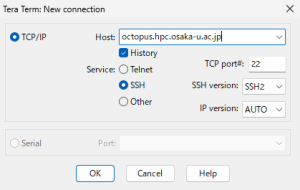
Start "Tera Term Pro", and in the "Tera Term: New connection dialog",
1.Select TCP/IP.
2.Enter the Host name (octopus.hpc.osaka-u.ac.jp in this case) in the Host field.
3.Select SSH for the service.
4.Click OK.
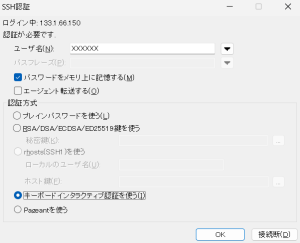
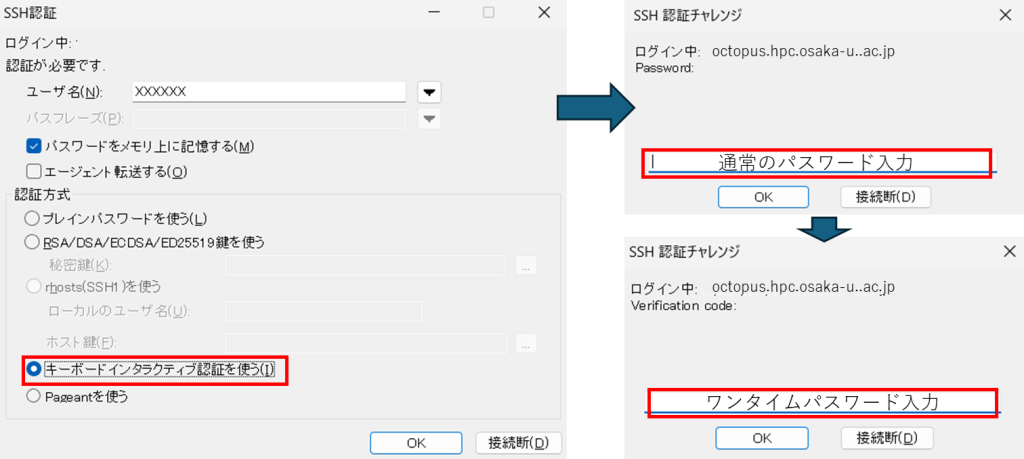
Enter your username on the SSH authentication screen and select "Use Keyboard Interactive Authentication" as the authentication method.
Initial setup of 2FA
When you log in for the first time, you will see the following in the terminal.
*If the terminal window is small, the QR code display will be broken. It is recommended to connect with the maximum window size.
Initiallize google-authenticator
Warning: pasting the following URL info your browser exposes the OTP secret to Google:
https://www.google.com/chart?chs=200*200&chld=M|0&cht=qr&otpauth://totp/user1@octop
us.hpc.osakau.ac.jp%3Fsecret%3DDXXXXXXXXCLI%26issuer%3Doctopus.hpc.osaka-u.ac.jp
<QR code>
Your new secret key is: XXXXXXXXXXX
Enter code from app (-1 to skip): -1
Code confirmation skipped
Your emergency scratch codes are:
Use the QR code displayed on the screen or the secret key followed by "Your new secret key is:" to register for the 2FA application.
*Depending on the window size of the terminal software, the QR code notation may be broken. Adjust the font size or use the URL and secret key provided.
Set up a 2FA app
1.Launch the Google Authenticator app and click the "Start" button.
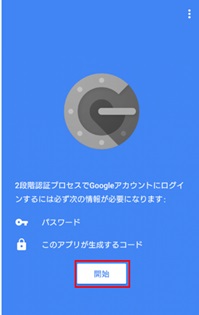
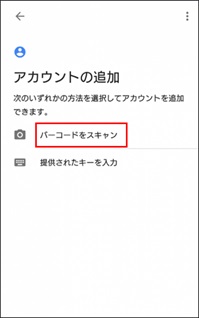
2. Select "Scan Barcode" or "Enter Provided Key" and enter the QR code or secret key displayed.
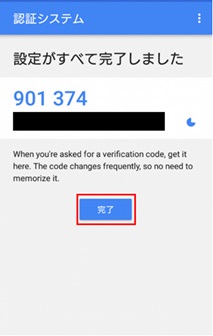
3.Once completed, the user is registered with Google Authenticator and issued a one-time
password.
End of first login
Go back to the terminal and type in for your question.
Your new secret key is: XXXXXXXXXXX
Enter code from app (-1 to skip): -1
Code confirmation skipped
Your emergency scratch codes are:
ok? Hit enter: (Enter key)
#When prompted with "Enter code from app (-1 to skip):", enter -1 to skip.
#When "ok? Hit enter:" is displayed, press the Enter key. You will be logged out once.
*In "Your emergency scratch codes are:", you can issue only the number of codes specified in the system that can only be used once. However, OCTOPUS has set it to zero and is unusable from the perspective of security.
Second and subsequent logins
SSH login using the one-time password registered in the first login.
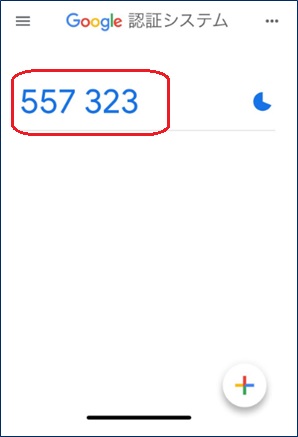
(1) Launch 2FA app
Launch 2FA app to verify your one-time password.
*The one-time password is updated every 30 seconds. Since you will use the latest one-time
password when logging in, keep the above screen displayed until you are logged in.
(2) SSH Access
SSH access is performed using terminal software or SSH commands. When logging in, use the
one-time password obtained in (1).
➢ Login from UNIX OS (Linux, macOS)
Use ssh command. An example of SSH login to a front-end (octopus.hpc.osaka-u.ac.jp) is as
follows:
$ ssh (-l username) octopus.hpc.osaka-u.ac.jp
(ユーザ名)@octopus.hpc.osaka-u.ac.jp's password: *****
# (Enter the same password as the one the user management system.)
Verification code: *****
# (Enter one-time password)
※(-l username):Required when the login username is different from the one on the local machine.
➢ Login from Windows
The following example uses the free software "Tera Term Pro". At the SSH authentication prompt, enter your one-time password to log in.
If you have any problem
Recovery instruction if Two-factor Authentication became unavailable
